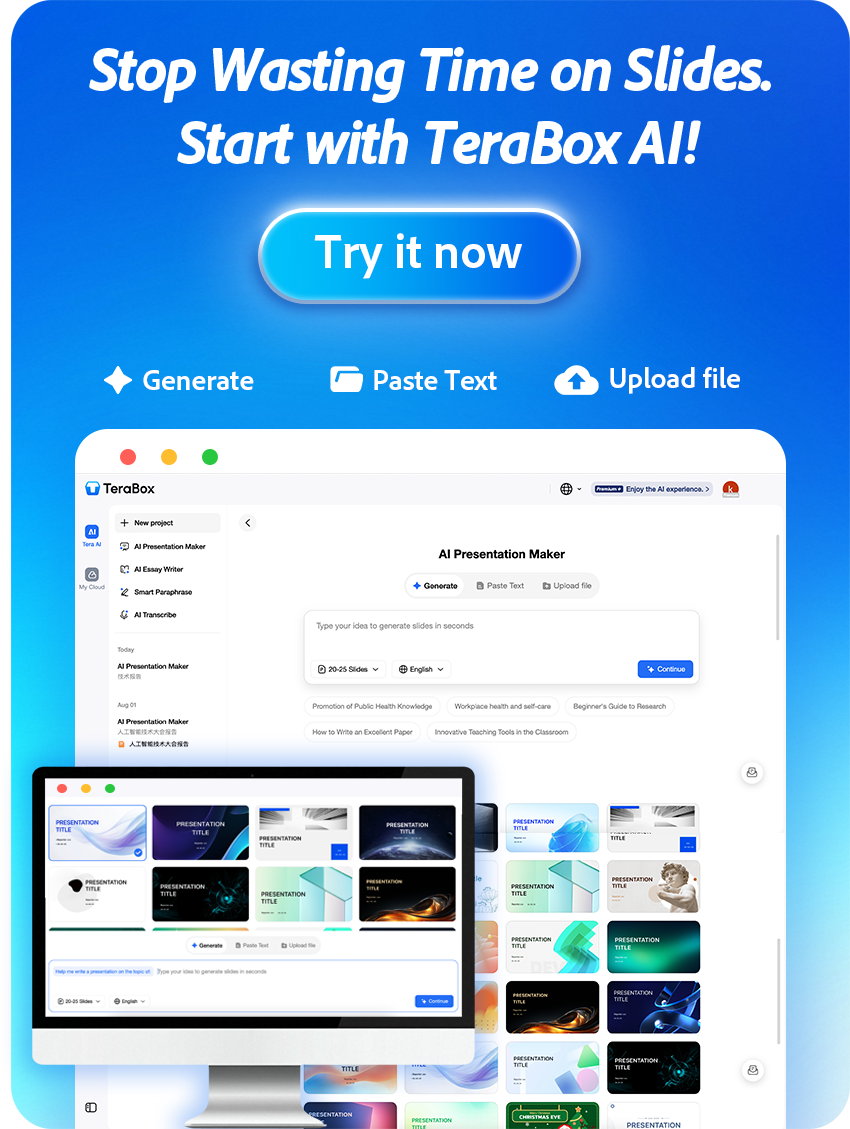
TeraBox has launched an exciting suite of AI-powered tools designed to make visual creation faster, easier, and more accessible to everyone. Among these innovations, AI Image Generation and AI Video Generation stand out as two powerful features that allow users to create professional-quality images and videos without any design or editing experience.
Whether you want to turn text descriptions into stunning visuals or bring static photos to life with dynamic motion, TeraBox provides intuitive solutions for social media, marketing, education, and personal projects.
In this guide, we’ll walk you through how to use both tools—step by step—so you can start creating with confidence!
Part 1: How to Use TeraBox AI Image Generator
Step 1: Access TeraBox AI Image Generation
AI has transformed digital creativity, enabling anyone to generate unique artwork, enhance photos, or reimagine visuals with minimal effort.
If you’re looking for a free, user-friendly tool that delivers professional results without requiring design experience, you’ve come to the right place.
TeraBox AI Image Generator specializes in both text-to-image and image-to-image generation, offering creative filters, background replacement, style transfer, and more. Whether you’re a marketer, content creator, student, or just exploring AI art, this tool simplifies the process.
To get started:
- Open your web browser and visit TeraBox.
- Sign in to your TeraBox account. If you don’t have one, you can register quickly using your email or Google account.
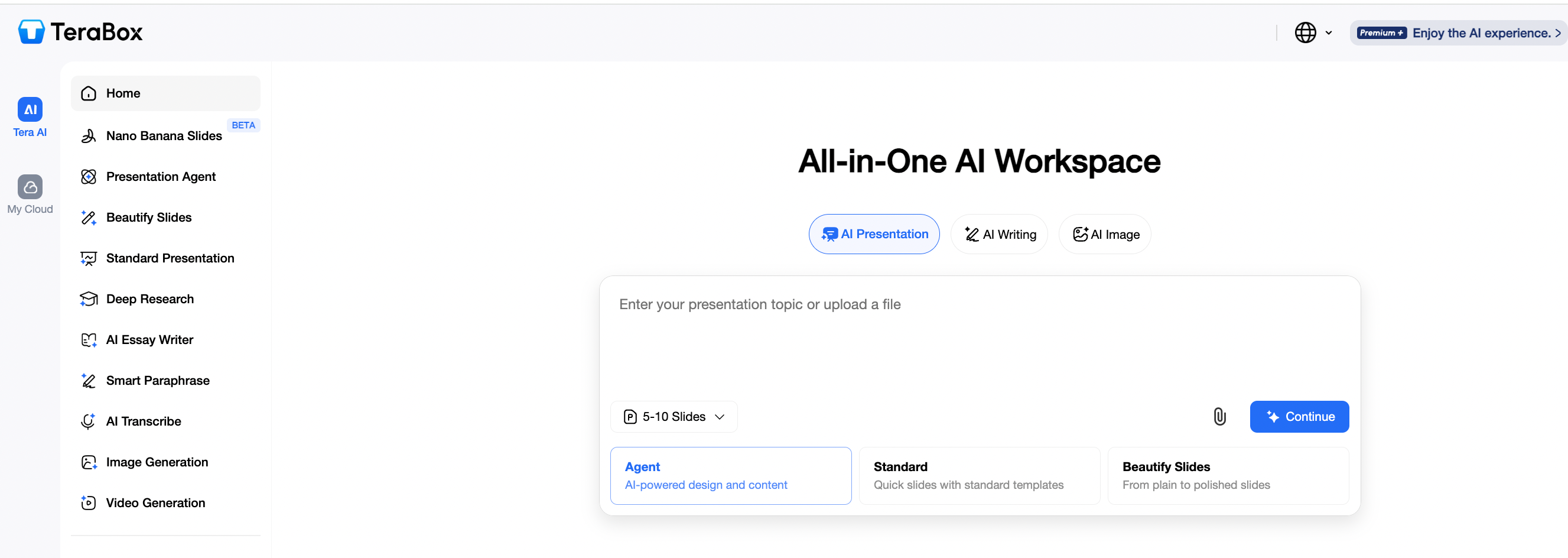
- From the main dashboard, locate and click on Image Generation in the menu.
- You’ll enter the AI image workspace, where you can choose between Generate and Effects .
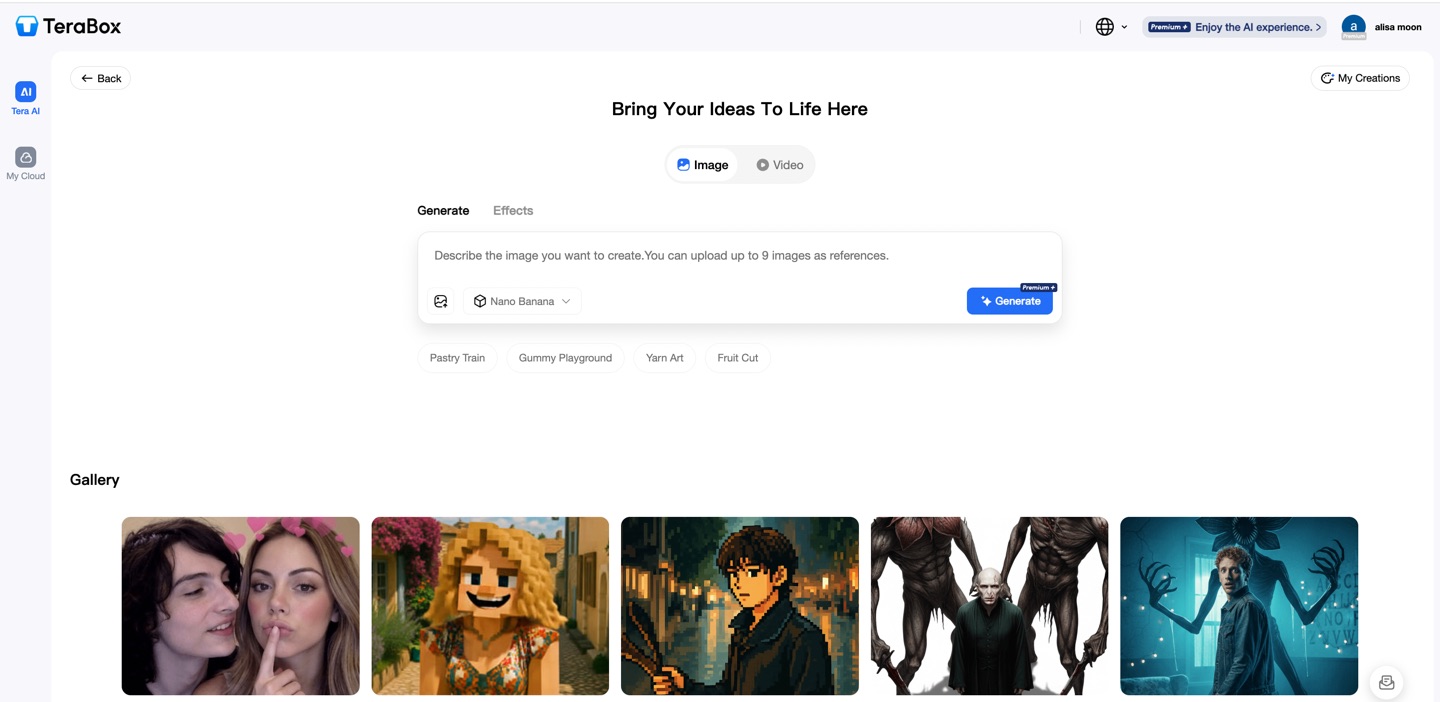
The clean interface lets you start creating immediately.
Step 2: Choose Your Creation Mode
TeraBox offers two main ways to generate images:
(1) Generate (Text-to-Image & Image-to-Image)
♥ Text-to-Image:
- Click the Generate tab.
- In the text input box, describe the image you want. Be as detailed as possible (e.g., “a calm lake at sunrise, digital art style, vivid colors”.
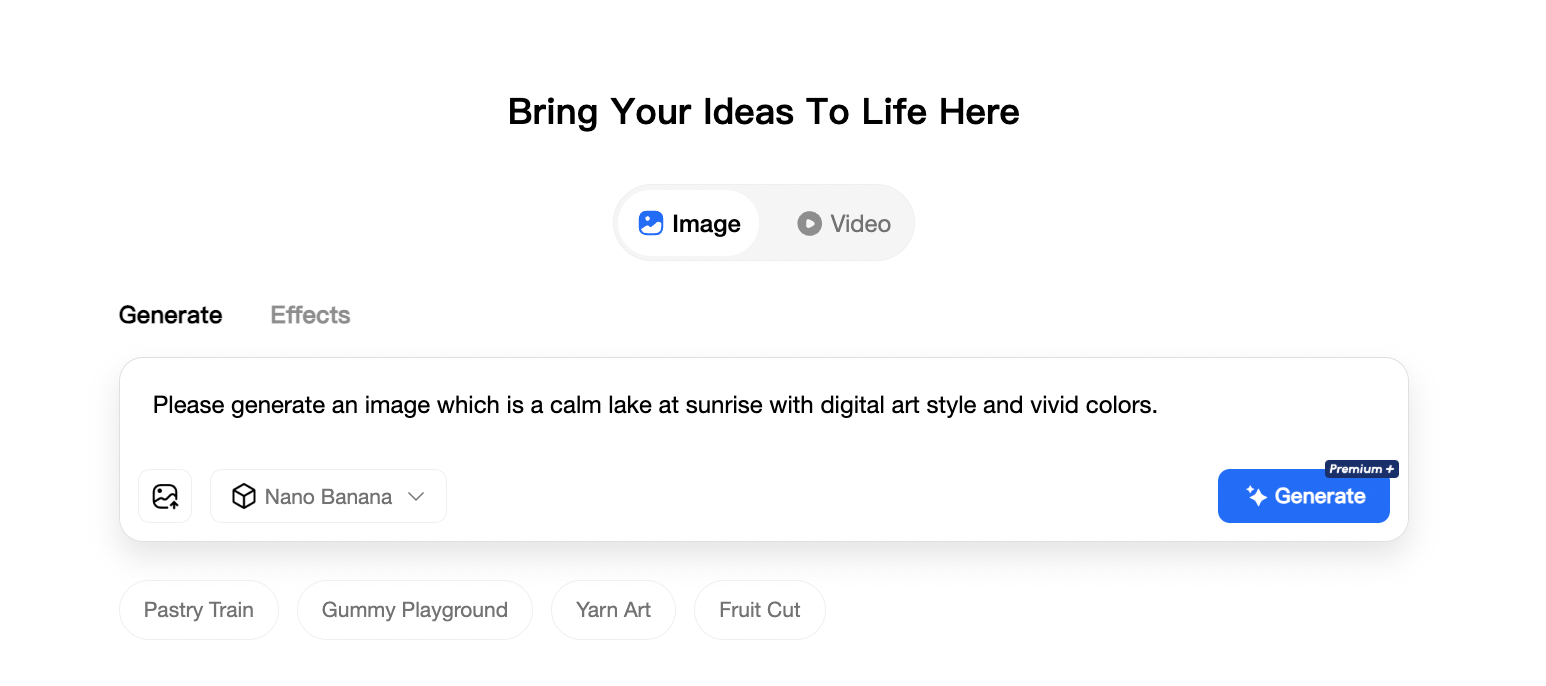
- You can optionally upload up to reference images to guide the style or composition.
- Click Generate to see the result.
♥ Image-to-Image:
- Select an image from your device. TeraBox supports PNG, JPG, and JPEG formats, with a maximum file size of 20MB per image.
- After uploading, enter a text prompt describing how you want to transform the image. For example, “replace the beach background with snowy mountains while keeping the person in the same position” or “transform this photo into an anime-style illustration.”
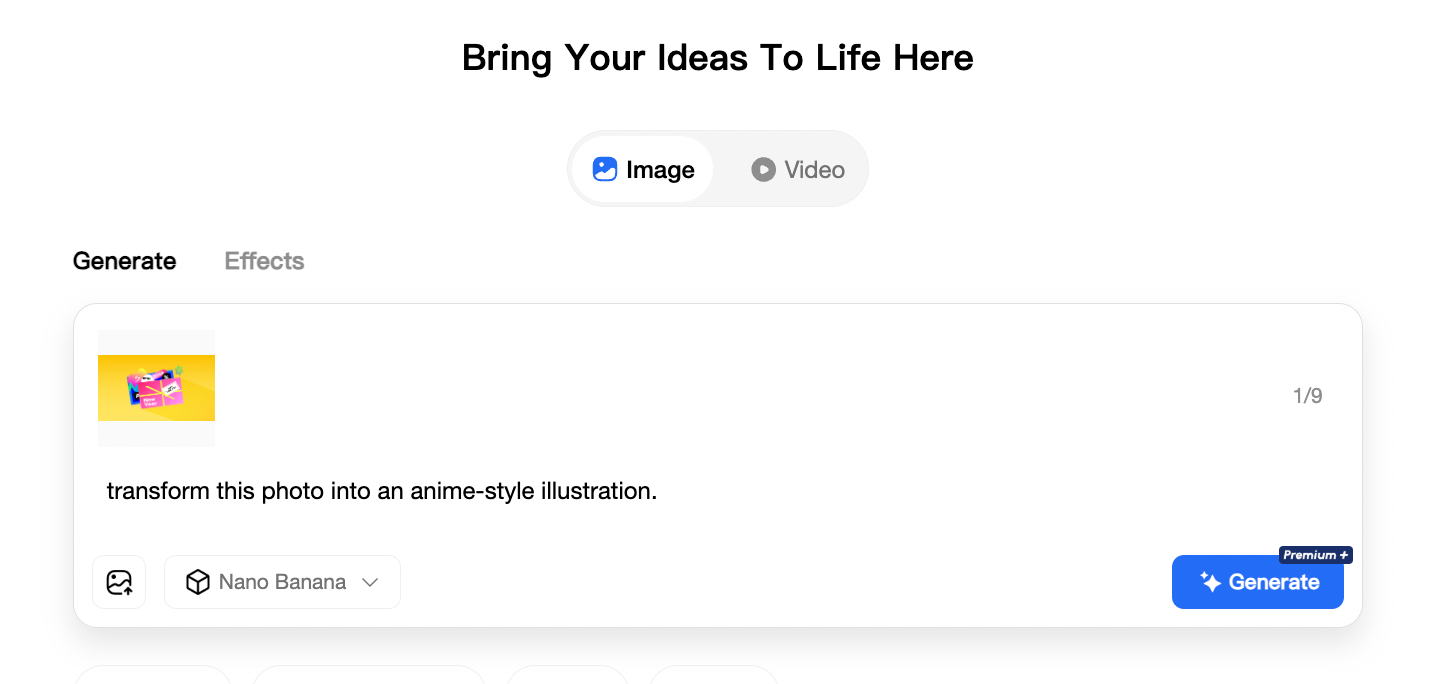
The AI will use your original image as a foundation and creatively reimagine it according to your instructions.
- Click Generate to see the transformation.
(2) Effects (Image-to-Image)
- Click the Effects tab.
- Upload an image from your device (supported formats: JPG, JPEG, PNG, max 20MB).
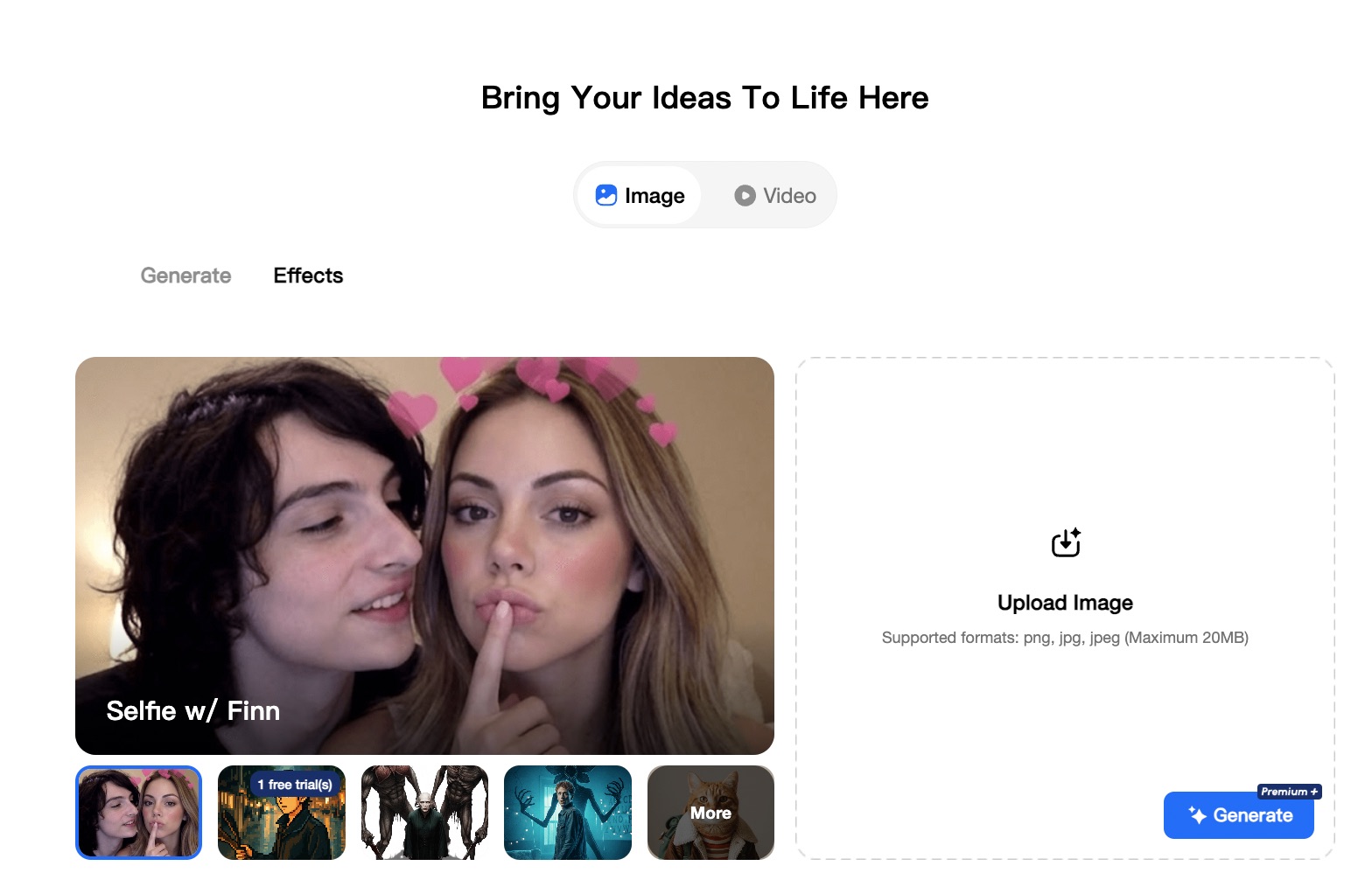
- Select the template that matches your vision.
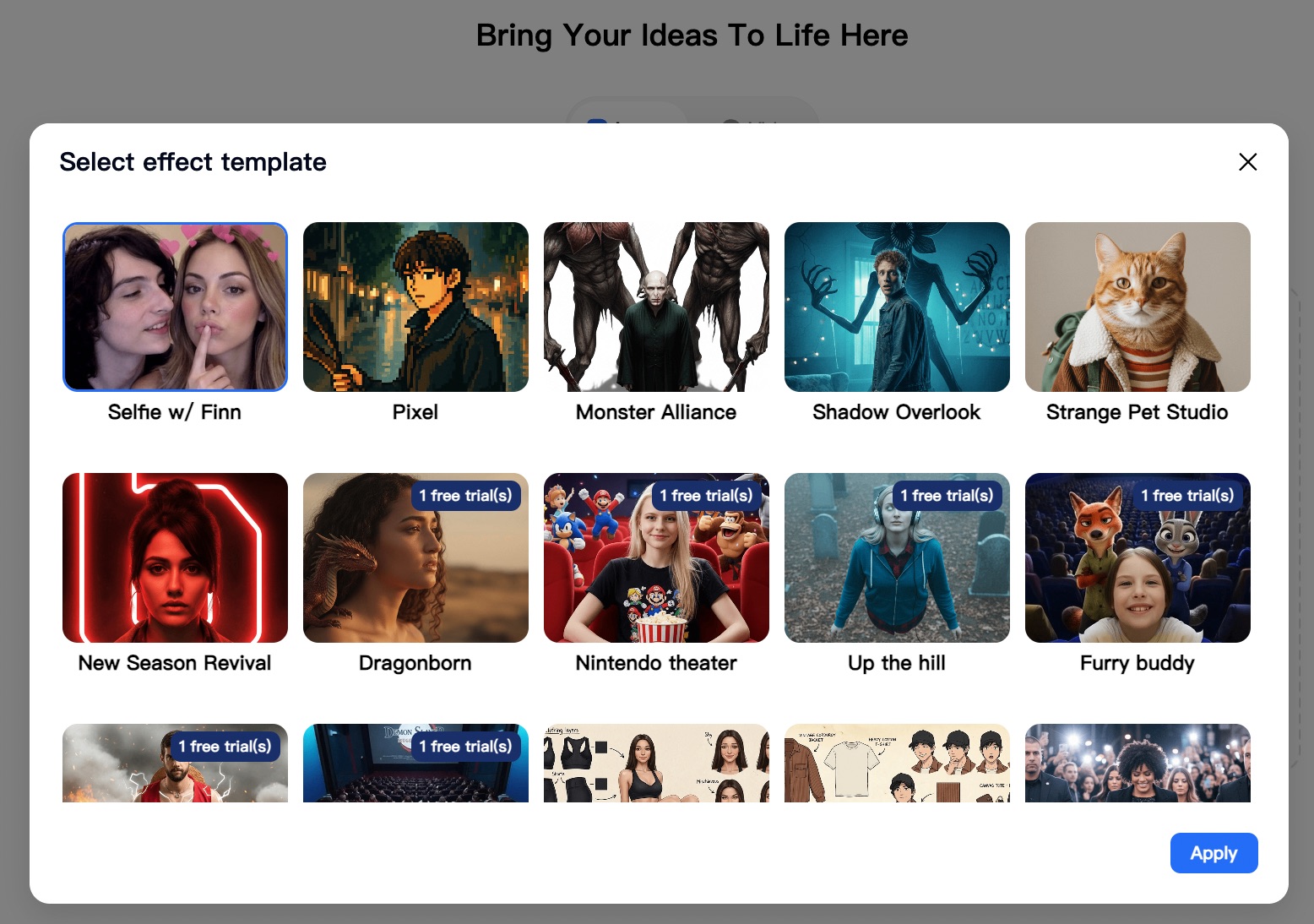
- Click Apply. The AI will automatically apply the selected effect to your image, maintaining high quality and visual consistency.
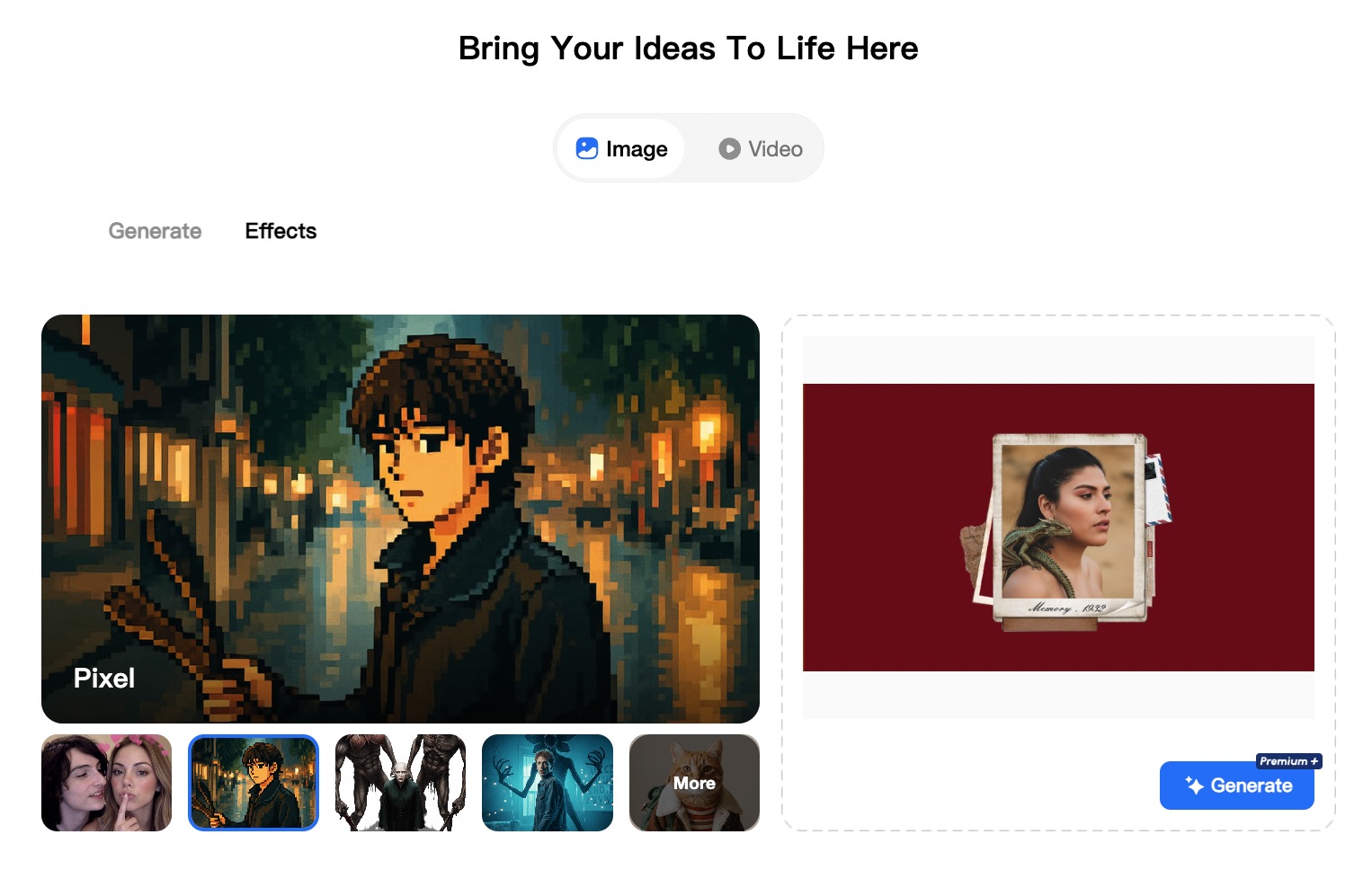
- Click Generate to see the result
Step 3: Generate and Preview
TeraBox AI will process your request in one minute. The AI applies advanced models like Nano Banana to ensure high-quality, detailed outputs.
- Click My Creations.
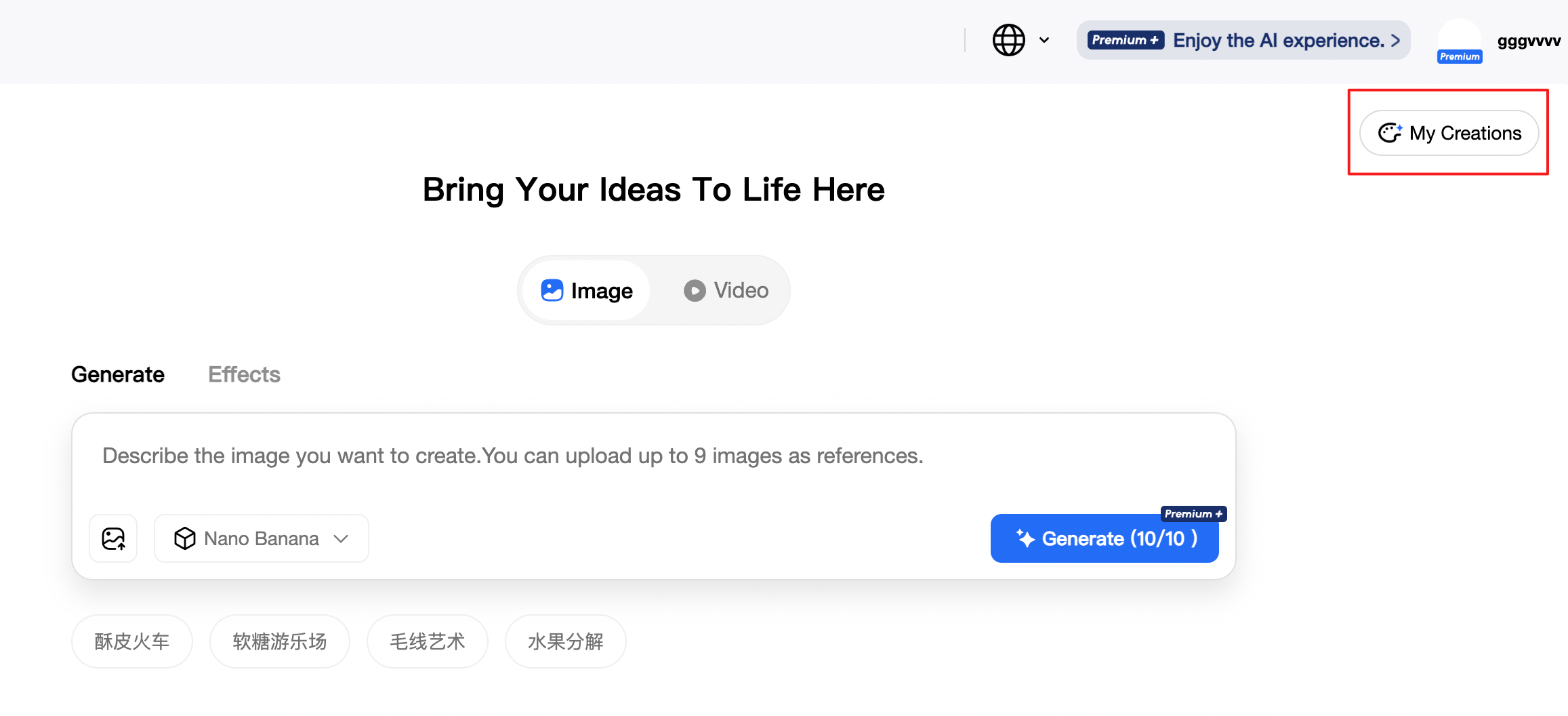
- Preview the generated Image.
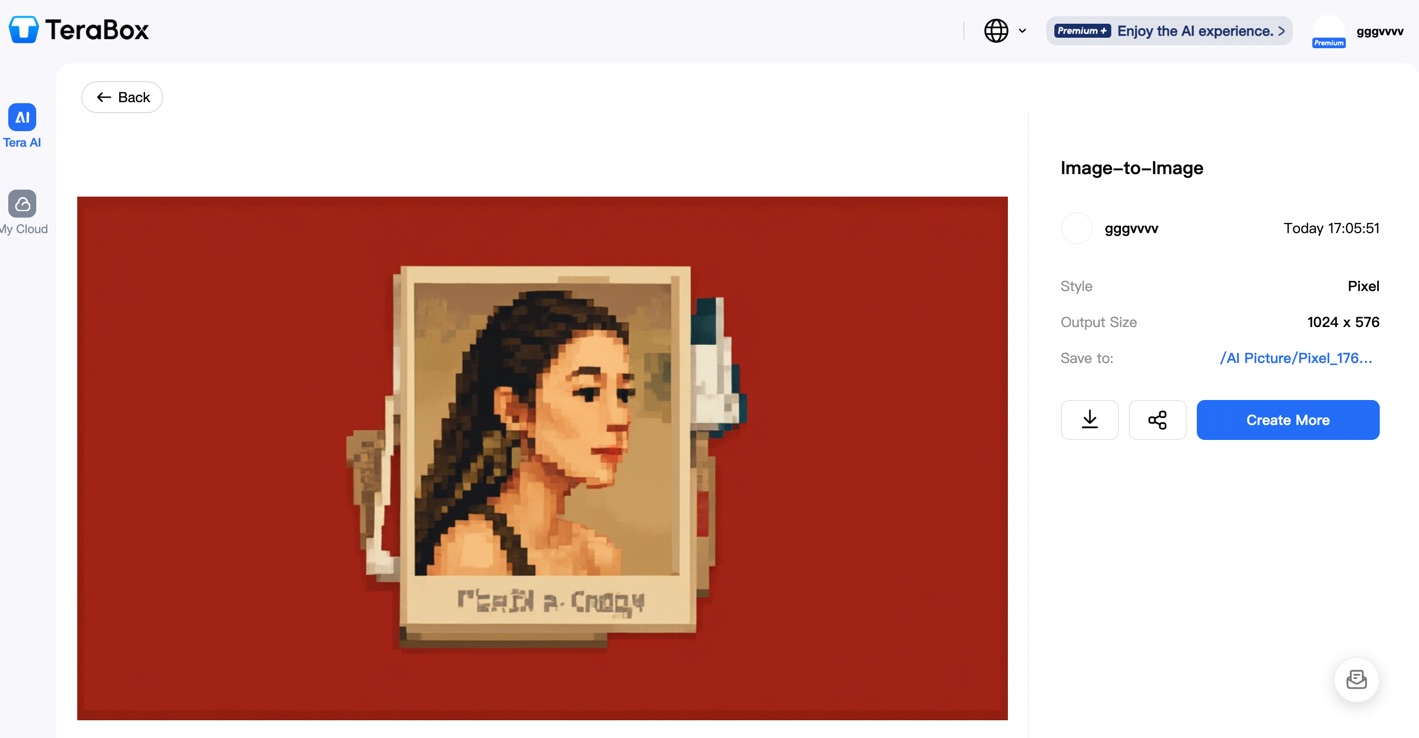
Step 4: Save and Download Your Creation
Once you’re satisfied:
- Click the Download button (shown with a download icon).
- The image will be saved to your device in high quality.
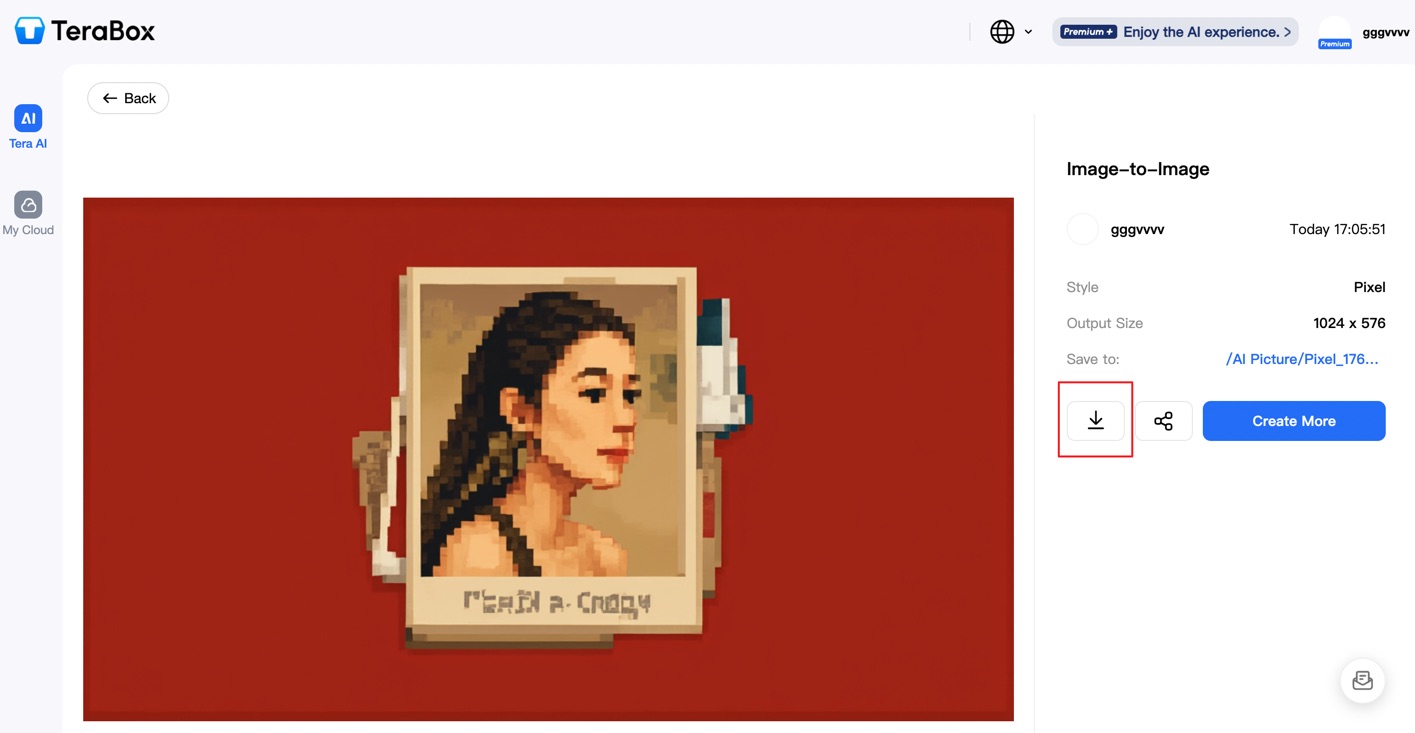
- You can also save it directly to your TeraBox cloud storage for later access.
All users get free generation credits. To unlock unlimited creations and all premium templates, you can upgrade to P+ Membership.
Explore Use Case Ideas
Not sure where to start? TeraBox AI is great for:
- Creating custom avatars or profile pictures
- Designing concept art for products
- Transforming portraits into different art styles
- Generating holiday-themed images (e.g., Christmas cards)
- Swapping seasons in landscape photos
- Enhancing social media visuals
- Producing professional backgrounds for LinkedIn or resumes
- Experiment with different prompts and images to discover what the AI can do.
Tips for Best Results
To get the most out of TeraBox AI Image Generation:
- Write clear, specific prompts.
Include details about subject, style, lighting, colors, mood, and composition. Instead of “a dog,” try “a golden retriever puppy playing in a sunny park, photorealistic style, warm afternoon lighting.”
- Use high-quality source images.
When using image-to-image transformation, start with clear, well-lit photos for better results. The higher the quality of your original image, the better the AI transformation will be.
- Experiment with different styles.
Don’t hesitate to try various artistic effects and models. Sometimes unexpected combinations create the most striking results.
- Specify what to preserve.
When transforming images, clearly indicate which elements should remain unchanged. For example, “keep the person’s face and clothing exactly the same, only change the background.”
- Start simple, then iterate.
Begin with a basic prompt, see what the AI creates, then refine your instructions based on the results.
From Images to Videos: Taking Creativity Further
Now that you know how to create stunning visuals with TeraBox AI Image Generator, let’s explore how to transform those images—or any photos—into engaging, dynamic videos using the TeraBox AI Video Generator!
Part 2: How to Use TeraBox AI Video Generator
Step 1: Get Started
AI has transformed video creation, allowing anyone to animate images, apply stunning effects, and produce ready-to-share content with minimal effort.
If you’re looking for a free, intuitive tool that creates high-resolution, watermark-free videos for social media, marketing, or personal projects, you’ve come to the right place.
TeraBox AI Video Generator specializes in bringing still images to life with motion, transitions, and artistic styles. Whether you’re a content creator, marketer, educator, or just exploring digital creativity, this tool simplifies the entire process.
To start your first video:
- Open your web browser and go to TeraBox.
- Sign in to your TeraBox account. If you’re new, register quickly using your email or Google account.
- From the main dashboard, find and click on AI Video Generation.
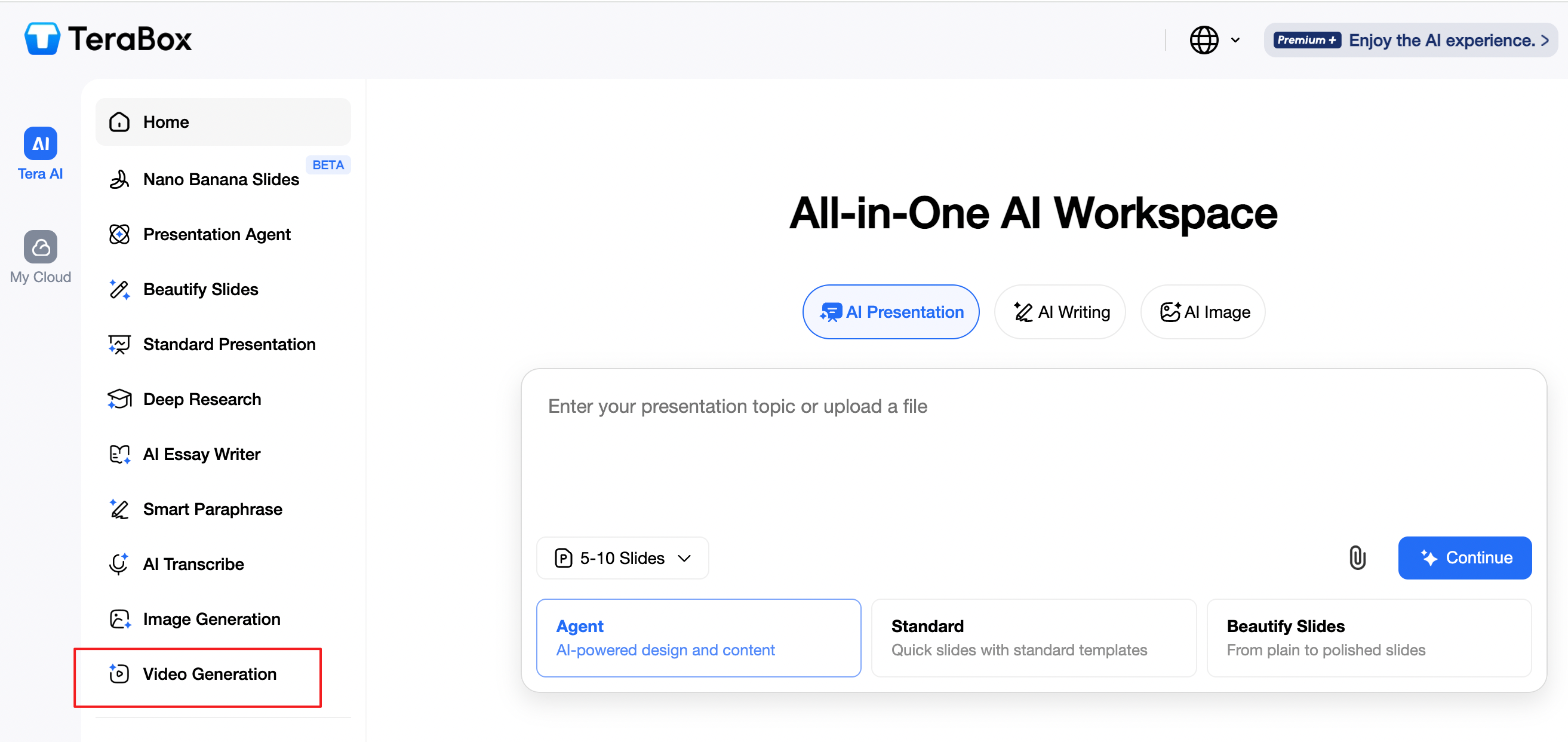
You’ll enter the AI video workspace, where you can choose to use various ready-made templates.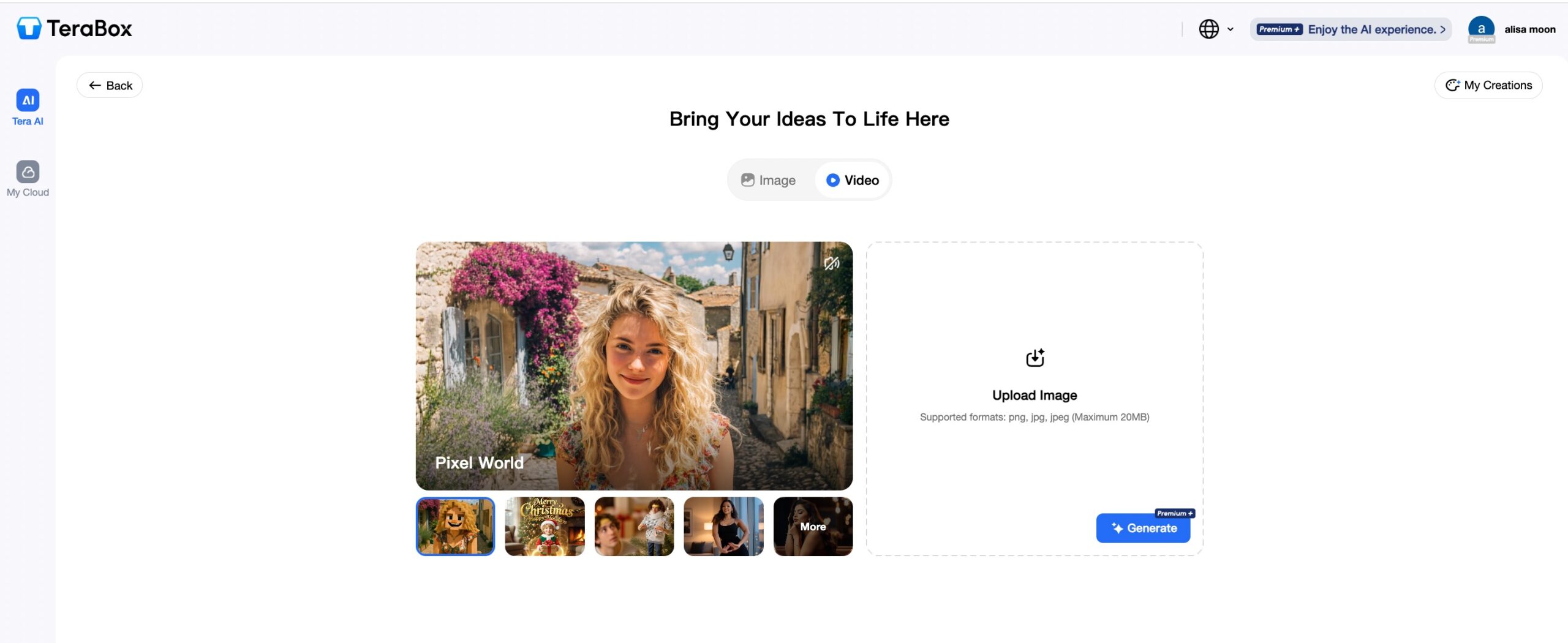
The clean, user-friendly interface lets you begin creating immediately.
Step 2: Choose Your Template
To quickly apply professional effects to your images:
- Click the Effect Templates tab.
Browse through 15+ popular AI video styles such as Anime, Cartoon, Hug, Kiss, Cinematic, or Dynamic Transition.
- Select the template you like and click Apply.
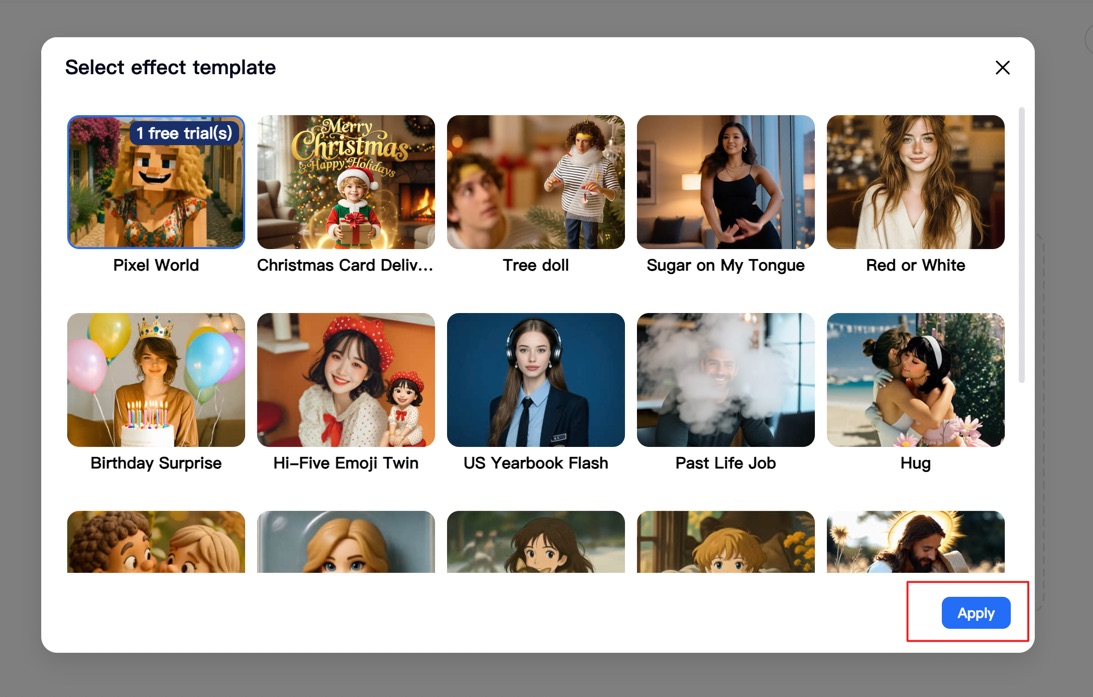
No text prompt is needed—the AI applies the chosen effect automatically.
- Upload one or two static images (JPG, PNG supported, max 20MB per file) in the Upload Image area.
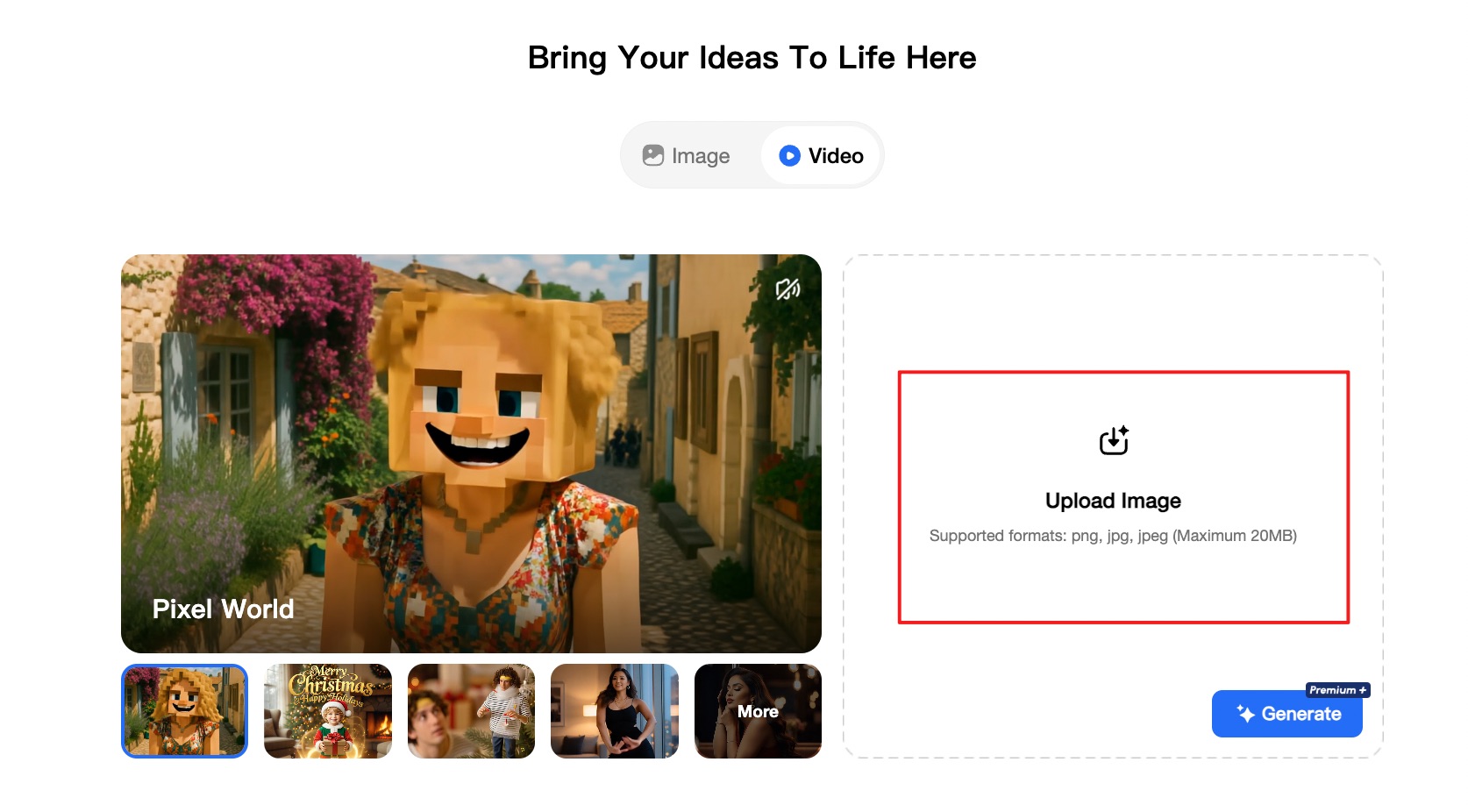
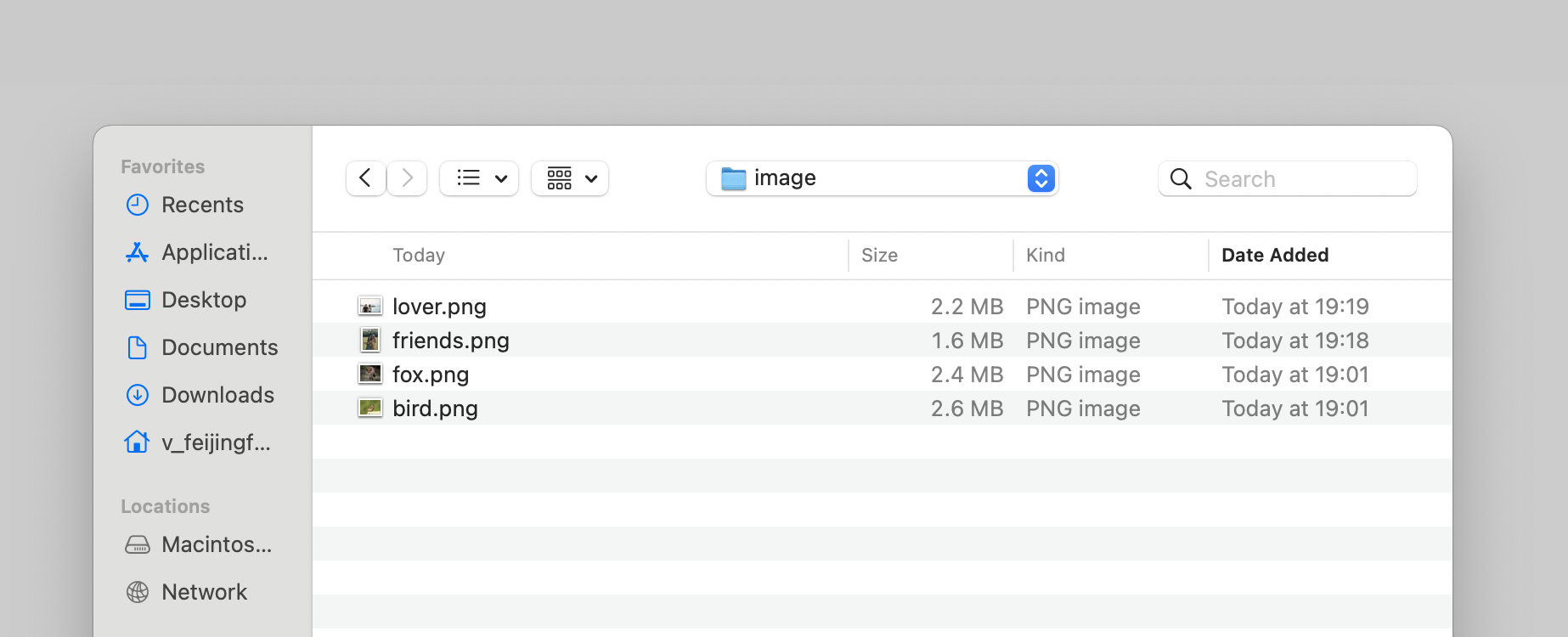
- Click Generate to see the result
Step 3: Generate and Preview Your Video
TeraBox AI will process your request in seconds. You’ll see:
- A preview of your animated video.
- Options to play, pause, or rewatch the result.
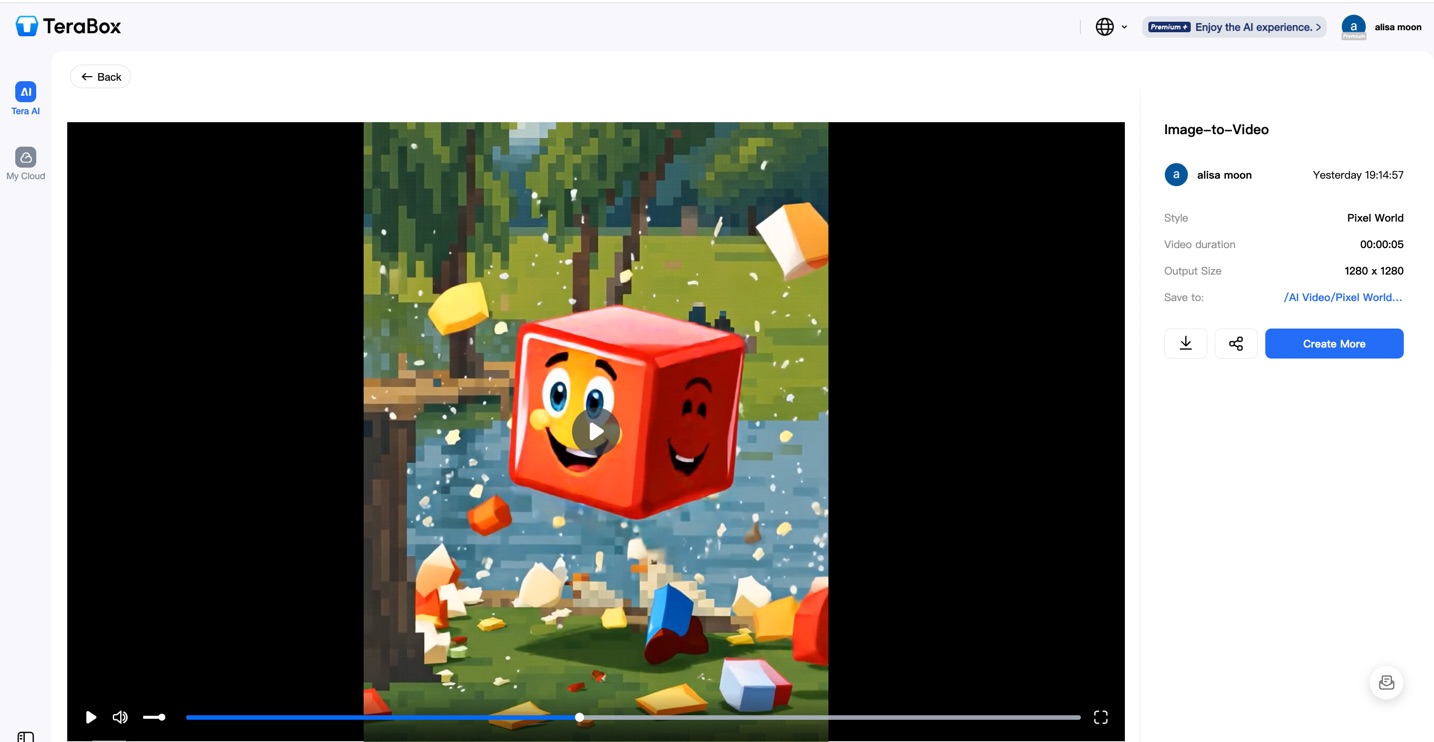
The AI retains image details while adding smooth, realistic motion and artistic styling.
Step 4: Save and Download Your Video
Once satisfied with your creation:
- Click the Download button (usually a download icon).
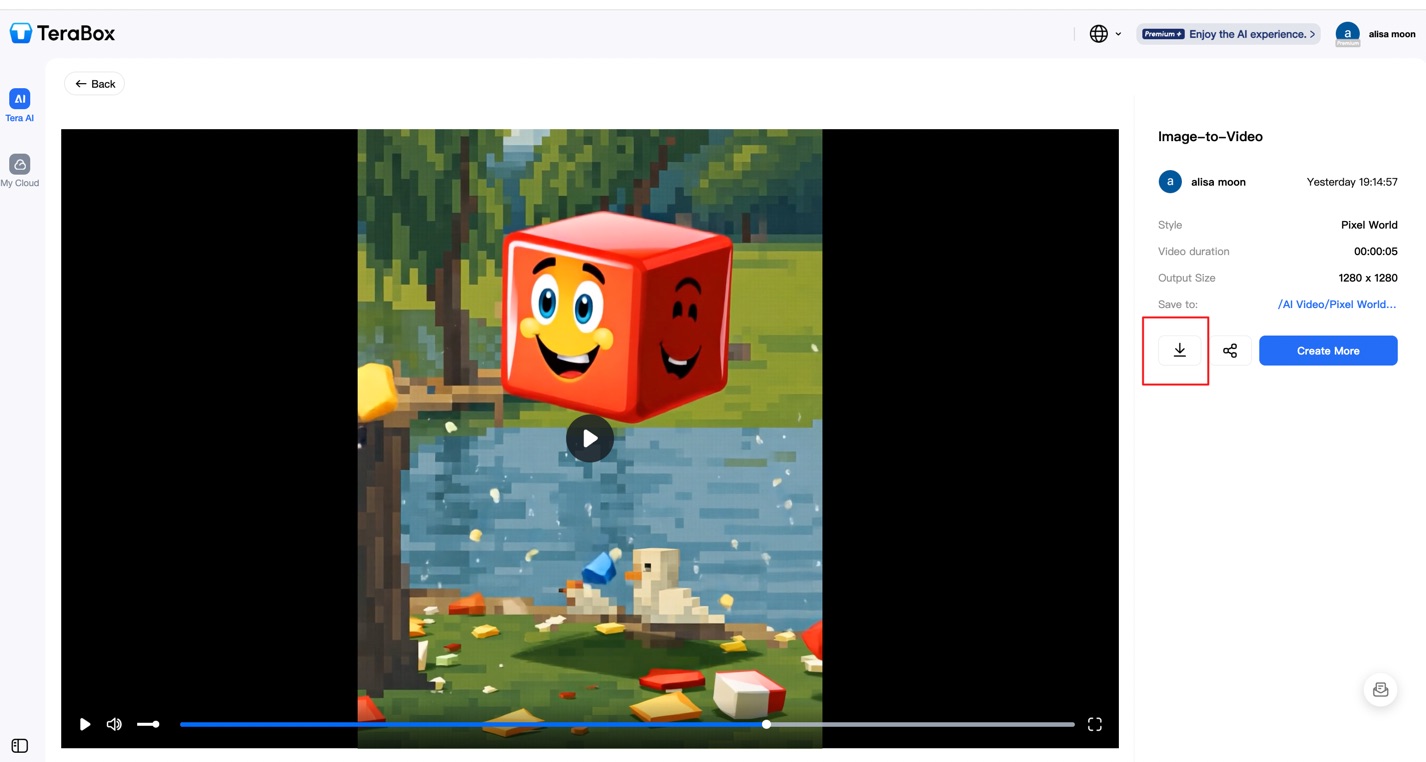
- Your video will be saved in high resolution, without watermarks, directly to your device.
- You can also save it to your TeraBox cloud storage for easy access and sharing.
All users get free access to many templates and generation credits. For unlimited videos and all premium styles, consider upgrading to a P+ Membership.
Explore Practical Applications
Not sure where to start? TeraBox AI Video Generation is perfect for:
- Social Media Content: Create eye-catching posts, stories, and ads for Instagram, TikTok, or YouTube.
- Marketing & Promotion: Animate product photos into dynamic ads or promotional clips.
- Education & Training: Turn diagrams, charts, or illustrations into engaging explainer videos.
- Real Estate: Generate virtual tours from static property photos.
- E-commerce: Showcase products with 360° spins or highlight features in motion.
- Personal Memories: Bring old photos to life with gentle motion for heartfelt tributes or family videos.
Experiment with different images and templates to discover the full potential of AI video creation.
Conclusion
TeraBox brings image and video creation together in one powerful, easy-to-use platform. From generating unique visuals with AI Image Generation to animating photos through AI Video Generation, anyone can now produce professional content without technical skills.
Whether you’re creating for social media, marketing campaigns, education, or personal storytelling, TeraBox helps transform your ideas into compelling visual experiences in just a few clicks.
Ready to create?
Visit TeraBox today and start generating AI images and videos for free!