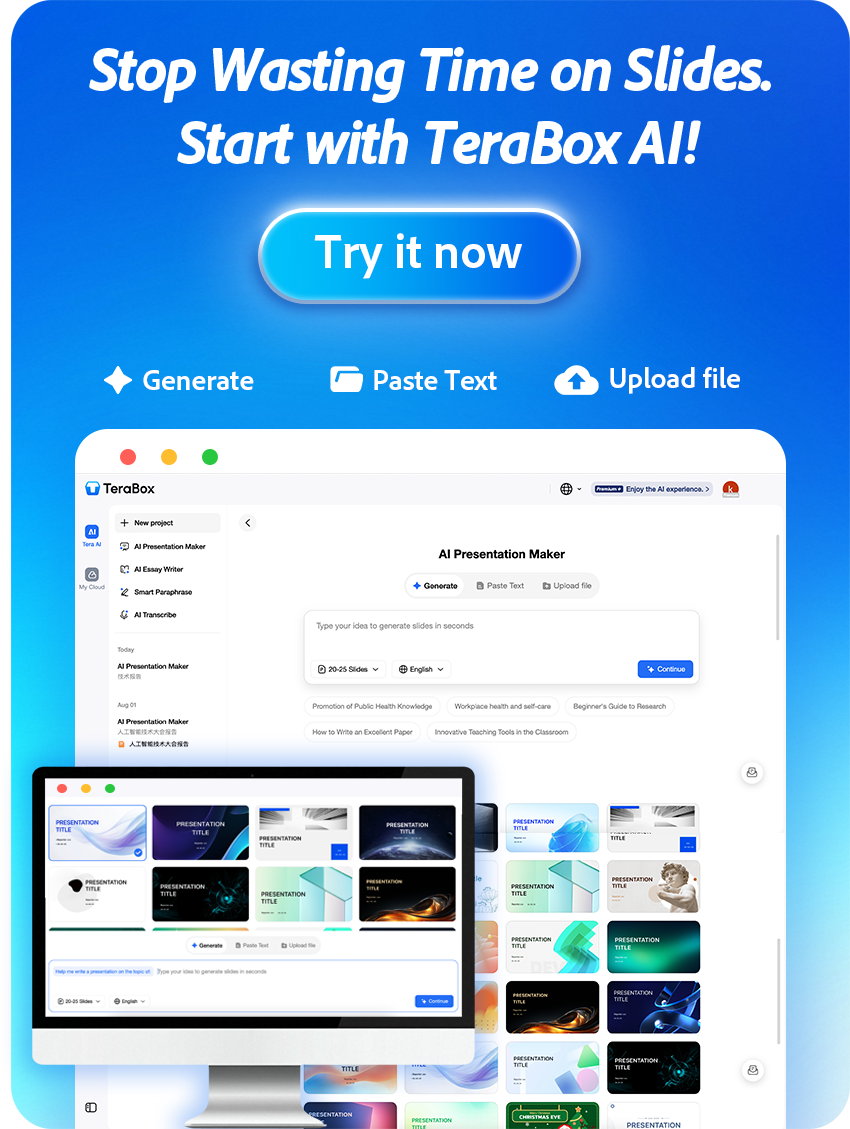
Struggling to make your presentations stand out?
Creating professional presentations can be a daunting and time-intensive process, especially when you’re juggling content research, design layout, and data verification. That’s where TeraBox’s AI-powered presentation tools step in! TeraBox offers two powerful solutions to meet your presentation needs:
TeraBox AI Presentation Agent – Perfect for creating presentations from scratch. Simply input a topic or upload a document, and the AI will structure your content, design professional slides, and even cite sources for key data. If you’ve been using TeraBox Standard Presentation for quick presentations, the Presentation Agent is the upgraded version that automates the entire workflow from research to design.
TeraBox AI Beautify Slides – Ideal for enhancing existing presentations. Upload your PowerPoint file, and the AI will transform rough, text-heavy slides into visually balanced, engaging presentations by optimizing layout, typography, color schemes, and data visualization.
Whether you’re a business professional preparing for an important meeting, an educator creating lecture materials, or a student working on a class project, these tools help you present with confidence and clarity—in just minutes.
In this comprehensive guide, we’ll walk you through exactly how to use both tools—step by step.
Part 1: How to Use TeraBox Presentation Agent
Step 1: Get Started
To create your first presentation:
- Open your web browser and go to TeraBox.
- Sign in to your TeraBox account. New users can register quickly via email or Google.
- Locate and click Presentation Agent from the main dashboard.

- You will enter a clean workspace where you can input your topic or upload reference files.

The straightforward interface helps you launch your first project immediately.
Step 2: Input Your Topic or Upload a File
The Presentation Agent begins with your content. You can provide input in two ways:
(1) Enter a Presentation Topic or Prompt
- Clearly describe the subject of your presentation in the main input box.

Examples:
- “Create a 10-slide pitch deck for a sustainable fashion startup.”
- “Summarize the key findings from the latest renewable energy trends report.”
- “Prepare a project update presentation for the Q3 marketing campaign.”
(2) Upload a Document for Reference (Optional)
To give the AI more context:
- Click the Upload Files button (shown with a file icon) to attach a document (e.g., a report, article, or outline)

Free users can upload files up to 5MB. For larger files, consider upgrading to P+ Membership.
Supported formats include PDF, DOCX, and TXT.

Whether starting from scratch or building from existing content, TeraBox makes setup quick and flexible.
Step 3: Set Presentation Length and Choose a Template
Next, to customize your slide count and choose a design Template:
- Click Page Count: Choose the number of slides you need (free users can generate 0–15 slides).

Browse through a variety of professionally designed templates. You can pick one that fits your topic, or let the AI choose and customize a template for you.
- Choose a template in the Start with a Template area(optional).

This step ensures your presentation aligns with your length expectations and visual style from the start.
- Click Continue

Step 4: Review and Edit the AI-Generated Outline
Once you confirm your settings, TeraBox AI will analyze your input and generate a structured presentation outline in seconds.
The outline will include suggested slide titles and key talking points, organized logically (e.g., Title Slide, Introduction, Main Points, Data Analysis, Conclusion).
You can review, edit, or regenerate this outline:
- Edit to modify headings, rearrange sections, or add your own points.

- Click Regenerate (shown with an update icon) to get a fresh outline.

This puts you in control of the content flow before any slides are designed.
Step 5: Generate Your Slides
- When you’re satisfied with the outline, click Generate Presentation.

TeraBox Presentation Agent will now:
- Create fully designed slides based on the outline.
- Populate each slide with concise content, relevant visuals, and clear data points.
- Add source citations for any statistics or references, ensuring credibility and traceability.
This process typically takes a few seconds to a few minutes, depending on slide count and complexity.
Step 6: Review and Edit Your Presentation
Once generation is complete, you’ll see your full slide deck in an online editor.
- Scroll through your slides to review content, design, and layout.

- Edit any element directly: Click on text to modify, replace images, or adjust design elements.

All source citations remain attached to data points and can be reviewed or removed as needed. The content referenced and data cited by TeraBox are all derived from the latest and authoritative articles.

Step 7: Download Your Presentation
When your slides are ready to present:
- Click the Download ( at the top right).

- Choose your preferred format:
PPTX for full editability in PowerPoint. PDF for easy sharing and printing.
Your file will download immediately.
The AI Presentation Agent is free to use twice a day. For unlimited creations and access to all templates, upgrade to TeraBox P+ Membership.
Part 2: How to Use TeraBox AI Beautify Slides
Already have a presentation that needs a visual upgrade? TeraBox AI Beautify Slides is your solution. This tool takes your existing PowerPoint files and transforms them into polished, professional decks by applying smart design principles automatically.
If you’re looking for a free, effortless way to turn your draft presentation into a polished, audience-ready deck, you’ve come to the right place.
Step 1: Get Started
To beautify your first presentation:
- Open your web browser and go to TeraBox.
- Sign in to your TeraBox account. New users can register quickly via email or Google.
- Locate and click Beautify Slides from the main dashboard

- You will enter a clean workspace where you can upload your presentation file.

The simple interface lets you start improving your slides right away.
Step 2: Upload Your Presentation File
TeraBox AI Beautify Slides begins with your existing PowerPoint file.
- Click or drag your file into the upload area.

Supported formats include PPTX and PPT. Your file should be no larger than 20MB and can contain up to 100 slides.
Step 3: Provide Optional Instructions (If Needed)
While the AI can beautify your slides automatically, you can also give specific guidance:
- In the text box , you can optionally enter requests such as:
“Use a professional blue color scheme.”
“Convert all tables into charts.”
“Make the design more modern and minimal.”

If you leave the instructions blank, the AI will apply its best judgment to enhance readability, consistency, and visual appeal.
Step 4: Initiate AI Beautification
Once your file is uploaded and any instructions are set:
- Click Continue.

The AI will now analyze each slide and apply enhancements including:
- Smart Layout Analysis: Rearranging elements for better visual balance.
- Color Harmonization: Applying a consistent, aesthetically pleasing color palette.
- Typography Optimization: Adjusting fonts, sizes, and spacing for improved readability.
- Data Visualization: Converting raw data in tables into charts, graphs, or infographics.
- Content Emphasis: Highlighting key points with icons, bullets, or visual cues.
- Consistency & Branding: Ensuring a uniform style across all slides.

This process typically takes a few minutes, depending on the number and complexity of your slides.
Step 5: Review the Beautified Presentation
Once the process is complete, you’ll see your slides:
- Before Beautifying


- After Beautifying


- Scroll through your slides to review content, design, and layout.
You have full control to make further adjustments:
- Edit any element directly: Modify text, replace images, adjust colors, or move elements as needed.

All edits are made directly in your browser—no additional software required.
Step 6: Download Your Polished Presentation
When you are satisfied with the beautified slides:
- Click the Download button (at the top right).

The AI Beautify Slides tool is free to use twice a day. For advanced templates or unlimited high-resolution exports, consider upgrading to TeraBox P+ Membership.
Tips for Beautification Prompts
To maximize the impact of TeraBox AI Beautify Slides, consider these instruction tips:
(1) Color Scheme Instructions
- “Use a corporate blue and white color scheme for a professional look.”
- “Apply warm, earthy tones suitable for a sustainability presentation.”
- “Keep the original brand colors but improve overall consistency.”
(2) Layout and Design Style
- “Make the design more modern and minimal with ample white space.”
- “Create a bold, dynamic layout suitable for a creative pitch.”
- “Maintain a formal, traditional style appropriate for executive audiences.”
(3) Data Visualization
- “Convert all data tables into charts or infographics.”
- “Transform statistics into visual elements like progress bars or icons.”
- “Keep tables but improve their formatting and readability.”
(4) Typography Improvements
- “Use larger, bolder headings for better readability in large venues.”
- “Reduce text density and emphasize key points only.”
- “Apply a clean, sans-serif font throughout for a modern look.”
(5) Content Emphasis
- “Add icons to illustrate key concepts on each slide.”
- “Highlight important statistics with visual callouts.”
- “Use consistent bullet styles and visual hierarchy throughout.”
(6) General Enhancement
- “Improve overall visual balance and alignment across all slides.”
- “Make the presentation more engaging and less text-heavy.”
- “Ensure consistent spacing and margins throughout the deck.”
Best Practices:
- Start with general instructions if you’re unsure—let the AI handle the details.
- Be specific about color preferences if your presentation requires brand consistency.
- If the first result isn’t perfect, you can re-upload and try different instructions.
- Review the beautified version carefully to ensure your original message remains clear.
These targeted instructions help the AI understand your vision and deliver beautification results that align perfectly with your presentation goals.
Conclusion
TeraBox’s AI presentation tools remove the stress from slide creation. AI Beautify Slides transforms your existing content with professional-grade design intelligence, making it more communicative and memorable. The AI Presentation Agent streamlines the entire process—from a simple idea or document to a professional, well-designed, and credible slide deck in minutes.
Whether you’re polishing a draft for an important meeting or building a new presentation for a client or class, these tools help you present with confidence and clarity—in just a few clicks.
Ready to create presentations smarter and faster?
Start your first AI-powered presentation with TeraBox today!