Compare the top presentation makers for Google Slides — from native editing to AI deck generators — and find the right fit for your workflow.
When people search for a Google Slides presentation maker, they usually mean one of three things: the built-in Google Slides editor, a third-party tool that exports polished decks for Google Slides, or an AI-powered generator that turns a prompt or outline into finished slides. Whichever category fits your situation, this guide covers the best options, how to evaluate them, and how to build professional presentations faster — whether you start from a blank canvas, a template, or a one-line prompt.
Quick Answer: Google Slides itself is a free, fully capable presentation maker best for collaboration and native editing. Template-based tools speed up design without disrupting your workflow. AI presentation makers convert prompts or outlines into draft decks — most export to .PPTX for easy upload to Google Slides. The best choice depends on whether you prioritise speed, design quality, or deep Google Workspace integration.
What Is a Google Slides Presentation Maker?
The phrase covers a broad range of tools and workflows. Here’s how to map the term to your actual need:
- Native Google Slides: Google’s own cloud presentation editor, free with any Google account. Real-time collaboration, theme builder, comments, and version history are all built in.
- Template platforms: Libraries of professionally designed slide decks you can copy directly into Google Slides or download as .PPTX. Ideal when you already know your content but want faster, polished layouts.
- AI deck generators: Tools that use a prompt, document, or outline to auto-generate a structured presentation. They export to formats compatible with Google Slides, letting you finish and share natively.
Native Maker vs Template Library vs AI Deck Generator
Each category solves a different problem. Native Google Slides excels at collaboration — multiple people can edit simultaneously, leave comments, and track changes within the familiar Google Workspace environment. Template libraries solve the design problem: they give you professional layouts and colour schemes you can drop your content into without starting from scratch. AI generators solve the blank-page problem: they produce a structured first draft from minimal input, so you spend your time refining rather than architecting.
Best Google Slides Presentation Maker Tools to Consider
How We Evaluated These Tools
Every tool below was assessed against the criteria that matter most to users comparing options for Google Slides workflows:
- Native editing inside Google Slides vs. import/export compatibility
- AI presentation generation capability (prompt-to-deck, outline-to-slides)
- Template quality, variety, and ease of customisation
- How well slides hold up after export or import (fonts, layouts, animations)
- Collaboration features (multi-user editing, comments, permissions)
- Branding controls (brand kits, master slides, font/colour locking)
- Pricing and free plan availability
Google Slides (Native)
![[Google Slides Presentation Maker template gallery, editor, and presenter view interface]](https://blog.terabox.com/wp-content/uploads/2026/05/Google-Slides-Native-.webp "Google Slides Presentation Maker: Best Tools, AI Options, Templates, and How to Build Slides Faster 5")
Google Slides: template gallery, slide editor, and presenter view.
Google Slides is Google Workspace’s native presentation tool — and it’s free. Its core strengths are real-time collaboration, straightforward sharing permissions, and deep integration with Google Drive, Docs, and Sheets. Multiple editors can work on a deck simultaneously with live cursors, and the comment thread system keeps feedback organised without cluttering the slides themselves. Version history lets you roll back to any saved state instantly.
The built-in template gallery and theme builder cover most everyday use cases, though the out-of-the-box designs skew toward utility over visual sophistication. For teams whose primary need is collaborative editing and fast sharing — rather than award-winning design — Google Slides is the obvious starting point, and often the finishing point too.
Best for: Teams, educators, students, and anyone already in Google Workspace who values collaboration above all else.
Limitations: Design ceiling is lower than purpose-built design tools; heavy animations may not survive round-trips to other formats.
AI Presentation Makers Compatible with Google Slides
AI-powered generators have matured rapidly. The core workflow is simple: enter a topic, prompt, or document → the tool produces a structured, designed presentation → you export as .PPTX and open in Google Slides for final edits and sharing. Leading tools in this category offer:
- Prompt-to-deck generation — describe your topic in one sentence and get 10–20 slides back in seconds.
- Outline-to-slides — paste a bullet outline and the AI structures and designs each slide automatically.
- Auto-layout and design suggestions — smart placement of text, visuals, and data across slide templates.
- Content summarisation — upload a long document and get a concise deck extracted from it.
Important caveat: Exported slides almost always need a cleanup pass in Google Slides. Fonts may substitute, spacing can shift, and complex animations may be stripped entirely. Budget time for a quick review before you share or present.
Template-Based Presentation Makers for Google Slides
Template platforms — such as Slidesgo, SlidesCarnival, and the official Google Slides template gallery — give you professionally designed slide sets that you can copy to your Drive with one click or download as a .PPTX or .GSLIDES file. These are the right choice when:
- Your content is already written and you just need a polished container for it.
- You want consistent visual hierarchy without hiring a designer.
- You need a repeatable deck format (monthly reports, pitch deck frameworks, lesson plans).
Best Tool by Use Case
| Best for
Native Collaboration Google Slides — real-time editing, comments, and permission-level sharing built in. |
| Best for
AI-First Drafting AI deck generators (e.g. Gamma, Beautiful.ai, Tome) — from prompt to polished first draft in minutes. |
| Best for
Polished Templates Slidesgo, SlidesCarnival, or Canva (export to PPTX) — professional designs, no design skills required. |
| Best for
Branded Business Decks Tools with brand kits and master-slide controls for consistent fonts, colours, and logos across every deck. |
| Best for
Students & Teachers Google Slides (free, collaborative, easy to share via Classroom) plus free template galleries. |
| Best for
Free Option Google Slides is entirely free. Most AI tools offer a limited free tier — enough to test before committing. |
Comparison Table: How to Choose the Right Google Slides Presentation Maker
Use this table as a fast filter before reading detailed reviews.
![[Google Slides collaboration features: comments panel, presenter view, and theme builder]](https://blog.terabox.com/wp-content/uploads/2026/05/Feature-by-feature-Comparison-Table.webp "Google Slides Presentation Maker: Best Tools, AI Options, Templates, and How to Build Slides Faster 6")
Feature-by-feature comparison of popular presentation makers. Compatibility and pricing details should be verified against current product pages before purchase.
| Tool Type | Native Google Slides? | AI Generation | Templates | Collaboration | Branding |
| Google Slides | ✔ Yes | ~ Basic (Duet AI) | ✔ Built-in | ✔ Full | ~ Theme builder |
| AI Deck Generator (e.g. Gamma, Tome) | ✘ No | ✔ Full AI | ✔ AI-styled | ~ Limited | ~ Brand kit (paid) |
| Template Platform (e.g. Slidesgo) | ~ GSLIDES download | ✘ No | ✔ Extensive | ✘ No | ~ Manual edit |
| Design Tool (e.g. Canva) | ✘ No | ~ AI features | ✔ Large library | ~ Team plan | ✔ Brand kit |
✔ = fully supported | ~ = partial/limited/paid | ✘ = not available. Verify current pricing and export features on each vendor’s website before making a purchasing decision.
How to Make a Presentation in Google Slides Quickly
Whether you’re using native Google Slides, an AI tool, or a template, the underlying workflow is the same: structure first, design second, collaborate and refine third. Here’s a practical five-step process that works for any starting point.
- Step 1: Start With a Template, Theme, or Outline
Open Google Slides and choose a theme from the template gallery, or import one from a template platform. If you’re using an AI tool, enter your topic as a prompt here to generate a draft deck. If you prefer full control, write a bullet outline of your slide flow before touching the design.
- Step 2: Build the Core Slide Flow
Structure matters more than decoration. A reliable flow: Title → Agenda / Key Message → Problem / Opportunity → Supporting Points or Data → Solution / Recommendation → Conclusion / CTA. Delete any template slides that don’t fit your story before adding content.
- Step 3: Apply Branding and Visual Consistency
Use Slide → Edit theme (the master-slide view) to set a consistent font pair, primary colour, and background across every slide. Reusing master layouts rather than formatting each slide individually saves significant time and produces a more professional result.
- Step 4: Add Charts, Images, and Speaker Support
Insert charts linked to Google Sheets so data updates automatically. Add screenshots, icons, or stock images to break up text-heavy slides. Write speaker notes below each slide — they show in Presenter View so you stay on track without reading from the screen.
- Step 5: Collaborate, Review, and Share
Click Share, set appropriate permissions (viewer, commenter, or editor), and send the link. Ask reviewers to use Insert → Comment rather than making direct edits — this keeps the change history clean. When the deck is final, present directly from Google Slides or export as PDF or PPTX.
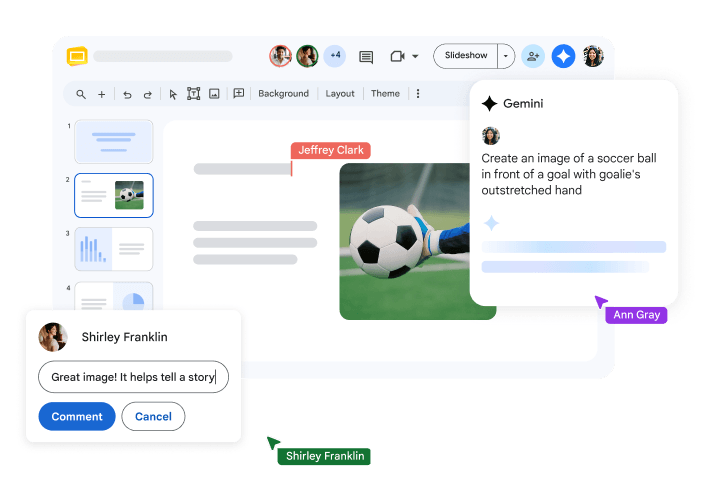
Google Slides collaboration features — comments, presenter view, and theme builder.
Templates vs AI Presentation Makers vs Doing It Manually
Choosing between these three approaches is really about matching the tool to your constraint: time, content readiness, or design quality.
When Templates Are the Best Choice
Templates shine when your content already exists and you need a polished visual container fast. They’re also ideal for repeatable formats — monthly board reports, weekly team updates, client proposal frameworks — where the layout should stay consistent while the content changes. Find Google Slides-native templates via the built-in gallery, Slidesgo (free and premium), or SlidesCarnival (free).
When AI Presentation Makers Are the Best Choice
If you’re staring at a blank page and need a structured first draft within minutes, an AI generator is the right tool. AI is also useful for idea generation — it will produce a reasonable slide sequence that you may not have thought of, especially for unfamiliar topics. Start with a well-worded prompt (include audience, goal, and key messages) for the best output. Export to PPTX, upload to Google Slides, and spend your editing time on refinement rather than structure.
When Manual Google Slides Creation Is the Best Choice
Manual creation offers the most control and the most reliable compatibility. It’s the best approach for highly collaborative decks (where multiple stakeholders need to edit simultaneously), for simple or low-stakes presentations (team updates, classroom handouts), and whenever Google Workspace integration is more important than advanced design effects.
What to Look for in a Google Slides Presentation Maker
Use this checklist when evaluating any tool marketed as a Google Slides presentation maker:
Google Slides Compatibility
Ask: does the tool edit natively in Google Slides, or does it export to PPTX for import? Export-based compatibility introduces risk — fonts may substitute, spacing can shift, and complex animations may not survive the trip. Test with a sample deck before committing to any paid plan.
Templates and Design Quality
Volume matters less than variety and professionalism. Look for industry-specific layouts (pitch decks, status reports, lesson plans), clean visual hierarchy, and templates that don’t require heroic editing to make your own content fit.
AI Features
Prompt-to-deck and outline-to-slides are the most valuable AI features for speed. Secondary features to consider: AI image generation integrated into slides, chart and data-vis suggestions, content summarisation from uploaded documents, and design layout recommendations.
Collaboration and Sharing
Real-time multi-user editing, granular permission levels (viewer / commenter / editor), and comment threads are table-stakes for teams. Google Slides provides all three natively; check whether third-party tools offer equivalent collaboration or require file export for every round of feedback.
Branding and Reusability
For businesses, a brand kit — locked fonts, colours, and logo placement — is worth paying for. Master slides and reusable component libraries dramatically cut the time to produce the fifth or fiftieth version of a branded deck.
Pricing and Value
Google Slides is free. Most AI tools offer a limited free tier (typically 3–10 decks or a watermarked export). Evaluate whether the paid plan’s time savings justify the cost for your volume of presentations. Watch for export restrictions on free tiers — some tools withhold PPTX export behind a paywall.
Common Problems When Creating Presentations for Google Slides
Imported Slides Don’t Look the Same
The most common import issue is font substitution — Google Slides will swap an unavailable font for a system default, which shifts text boxes and breaks layouts. Fix: use widely available fonts (Roboto, Open Sans, Lato, Montserrat) in your source tool, and do a quick visual review of every slide after import. Complex slide transitions and animations are often dropped entirely — plan for that before you design.
The Deck Looks Generic
Generic-looking slides usually come from over-reliance on default layouts. Fix: choose a template with stronger visual identity, reduce text density, and improve hierarchy by making headings much larger than body copy. Adding one compelling visual per slide — a chart, screenshot, or bold statistic — significantly raises the perceived quality of a deck.
AI-Generated Slides Need Too Much Editing
The quality of AI output is almost entirely determined by the quality of the prompt. Fix: include the audience, the purpose, the key messages, and the desired slide count in your prompt. If the full deck needs heavy editing, try regenerating only the problem sections rather than the whole deck. Use AI to handle structure and first-pass content; reserve your time for visual refinement and fact-checking.
Collaboration Gets Messy
When multiple people edit slides without a system, style breaks down fast. Fix: assign slide ownership (“slides 1–5 are owned by Marketing”), use comments for feedback rather than direct edits, and enforce a shared style guide stored in the deck’s master slides. Locking the master layout prevents accidental font or colour changes by collaborators.
Recommended Use Cases for Different Types of Users
For Students and Teachers
Google Slides is the default choice — it’s free, integrates with Google Classroom, supports easy sharing, and allows simultaneous editing for group projects. Supplement with free template galleries (Slidesgo’s Education category is particularly strong) to lift design quality without added cost.
For Small Businesses and Startups
Startups benefit most from AI-generated pitch decks (fast first draft for investor meetings) combined with a branded template system in Google Slides for day-to-day team communication. Most AI tools offer a free tier sufficient for occasional use; upgrade when volume justifies it.
For Marketing and Sales Teams
Volume and consistency are the primary challenges. A branded master-slide system in Google Slides — shared via a template Drive folder — ensures every proposal and pitch looks on-brand without requiring a designer for each update. AI tools can accelerate first-draft proposal generation; the team then customises with client-specific data.
For Consultants and Agencies
Client-facing decks demand higher design quality and reliable export fidelity. A design tool (Canva, Figma) or an AI tool with strong brand controls can produce the visual standard clients expect. Export to PPTX and finalise in Google Slides for sharing and collaboration. Keep a reusable slide library for recurring frameworks (SWOT, roadmaps, project status).
Final Verdict: Which Google Slides Presentation Maker Should You Choose?
- Choose Google Slides natively if collaboration, real-time editing, and Google Workspace integration are your top priorities — and especially if your audience needs to edit the deck after you share it.
- Choose a template-based solution if you already know your content and need a professional design fast without switching tools or learning a new platform.
- Choose an AI presentation maker if you need a structured first draft in minutes — particularly for one-off decks, unfamiliar topics, or situations where structure and coverage matter more than pixel-perfect design on the first pass.
The practical next step: decide which constraint is binding right now — is it speed (go AI), design quality (go templates or design tools), or native editing and sharing (stay in Google Slides)? Start there, and you’ll immediately narrow the field to the right tool.
Frequently Asked Questions
Is Google Slides itself a presentation maker?
Yes. Google Slides is Google’s native, browser-based presentation software. It supports creating, editing, designing, collaborating on, and presenting decks — all for free with a Google account. It’s the most widely used free presentation maker in the world.
What is the best AI presentation maker for Google Slides?
There is no single “best” — the right choice depends on your use case. For fast, well-designed AI decks with strong export quality, tools like Gamma, Beautiful.ai, and Tome are frequently cited. Canva’s AI features are strong if you also need graphic design capabilities. Evaluate each based on PPTX export quality, how much cleanup the exported deck needs in Google Slides, and whether the free tier meets your volume.
Can AI tools create presentations that work in Google Slides?
Yes, but compatibility varies by tool and template complexity. Most AI generators export to .PPTX, which you can upload to Google Slides via File → Import slides or by uploading directly to Drive. The main issues to watch: font substitution, spacing shifts, and lost animations. Always review all slides after import before presenting or sharing.
Are there free Google Slides presentation makers?
Several. Google Slides itself is completely free. Free template sources include Slidesgo, SlidesCarnival, and the built-in Google Slides template gallery. Most AI presentation tools offer a limited free tier (typically 3–10 generated decks or watermarked exports) so you can test before upgrading.
What are the best presentation alternatives if I don’t want to use Google Slides?
The best sources for free professional Google Slides templates are Slidesgo (broad range, many industry-specific themes), SlidesCarnival (clean minimal designs), and the Google Slides template gallery (accessible directly in the app). For premium options, Envato Elements and Creative Market offer large libraries of high-quality PPTX/GSLIDES templates.
Top alternatives include Slidesgo for quick, professional templates and TeraBox AI Presentation Maker for AI-powered PPT generation and even beautification. For advanced animations or deep graphic design, Microsoft PowerPoint and Canva are the go-to choices.
What should I look for in a Google Slides-compatible presentation tool?
Prioritise: (1) genuine Google Slides compatibility — native editing or clean PPTX export; (2) template quality and variety relevant to your industry; (3) AI features if you need fast drafting; (4) collaboration tools if multiple people will edit; (5) branding controls (brand kits, master slides) if consistency across decks matters; and (6) transparent pricing with a meaningful free tier to test before you pay.