Have you ever found yourself sitting in front of your laptop, trying to create a PowerPoint presentation, but struggling to come up with ideas? Do you not know where to start or end the presentation? Or, how can you convert your Word document into a PowerPoint presentation?
Are you also struggling to find the answers to these questions? If so, then tap yourself on the back because you’ve just seen the place where you can get the answer to every single question. Are you ready to learn how to convert Word to PPT? Let’s dig into it.
Why Convert Word Documents to PPT Presentations?
Have you ever wondered why you need to transform your Word document into a PPT presentation? The simple answer is that it completely transforms your content, making it more engaging and compelling. By simply adding some elements and icons, it breathes new life into your content.
But wait, it doesn’t end here. By converting your Word document into PowerPoint, you can also communicate more effectively with your audience.
In this way, your audience can get a better understanding about the point you are trying to convey. These days, almost every department is using this strategy; let us explore some of these cases.
Use Cases:
- Business presentations: Business employees mostly use PowerPoint presentations to deliver reports, proposals, and sales pitches.
- Educational purposes: Converting a Word document to PowerPoint can also prove beneficial for teachers, students, or trainers. In this way, they can make the complex topic more interesting and engaging.
- Conference or seminar talks: Usually, presenters convert their research papers or speeches from Word documents to PowerPoint presentations to captivate their audience and make the key points of the presentation easily understandable.
- Marketing and sales: A PowerPoint presentation proves to be a powerful tool that can take your marketing to a whole new level. PPT presentations enable you to showcase products or services in a way that effectively captivates your audience.
- Webinars and online courses: PPT presentations can also help you break down complex information into interesting and engaging content, facilitating your learning in webinars or online courses.
How to Convert Word to PPT for Free?
1. TeraBox
If you mostly deal with Word files and often need to convert them into a PPT presentation. Then, no worries because TeraBox has got you covered. It is a single solution for all your problems, whether it is converting your DOC files into PPT presentations or maintaining the key points or formatting of your DOC files. TeraBox is all you need!
2. Microsoft Word for the Web
Microsoft Word for the Web is another tool that can transform your DOC files into engaging PowerPoint presentations. This tool allows you to export your Word documents directly into PowerPoint, so you don’t need to use scratch for making a PPT. Amazing, right?
3. PageOn.ai
PageOn.ai stands out as one of the best DOC to PPT tools with its unique capabilities. This tool not only converts DOC files to PPT but also supports various other formats, making it a versatile choice for users with diverse needs.
4. Plus AI
Plus AI provides a robust solution for converting DOC files into PPT presentations. This tool utilizes artificial intelligence to enhance the conversion process, ensuring that your presentations are both visually appealing and informative.
5. Convertio
Convertio offers a versatile solution for transforming your DOC files into engaging PPT presentations. This online tool provides a seamless experience, allowing you to convert your documents quickly and efficiently.
6. Online2PDF
Online2PDF is a web-based converter that enables you to transform your DOC files into PPT presentations easily. If you are seeking a straightforward and efficient solution that doesn’t require software installation, this tool is the ideal choice.
7. SlidesPilot
SlidesPilot is an AI-driven tool that enhances the conversion of DOC files to PPT presentations. This tool focuses on providing high-quality output with minimal effort, making it ideal for users who need to create professional presentations quickly.
8. MagicSlides
MagicSlides stands out as an AI-driven tool that enhances the conversion of DOC files to PPT presentations. This tool focuses on providing quick and precise conversions, making it a valuable asset for users who need efficient solutions.
Convert Word to PPT on a Laptop
Do you want to learn how to convert Word to PPT in laptop? Creating a captivating PowerPoint presentation from your Word document is an easy process that can be accomplished in just a few steps.
By properly formatting your content, converting it to a Word document, and seamlessly transforming the Word document into a PowerPoint file, you can produce an engaging and visually appealing presentation.
How to Create a PowerPoint with TeraBox AI? A Step-By-Step Guide
Step 1: Upload Your Word Document
When you select TeraBox AI Presentation Maker, a simple dashboard will appear. Here, you can upload a Word document to create your presentation and click the button.
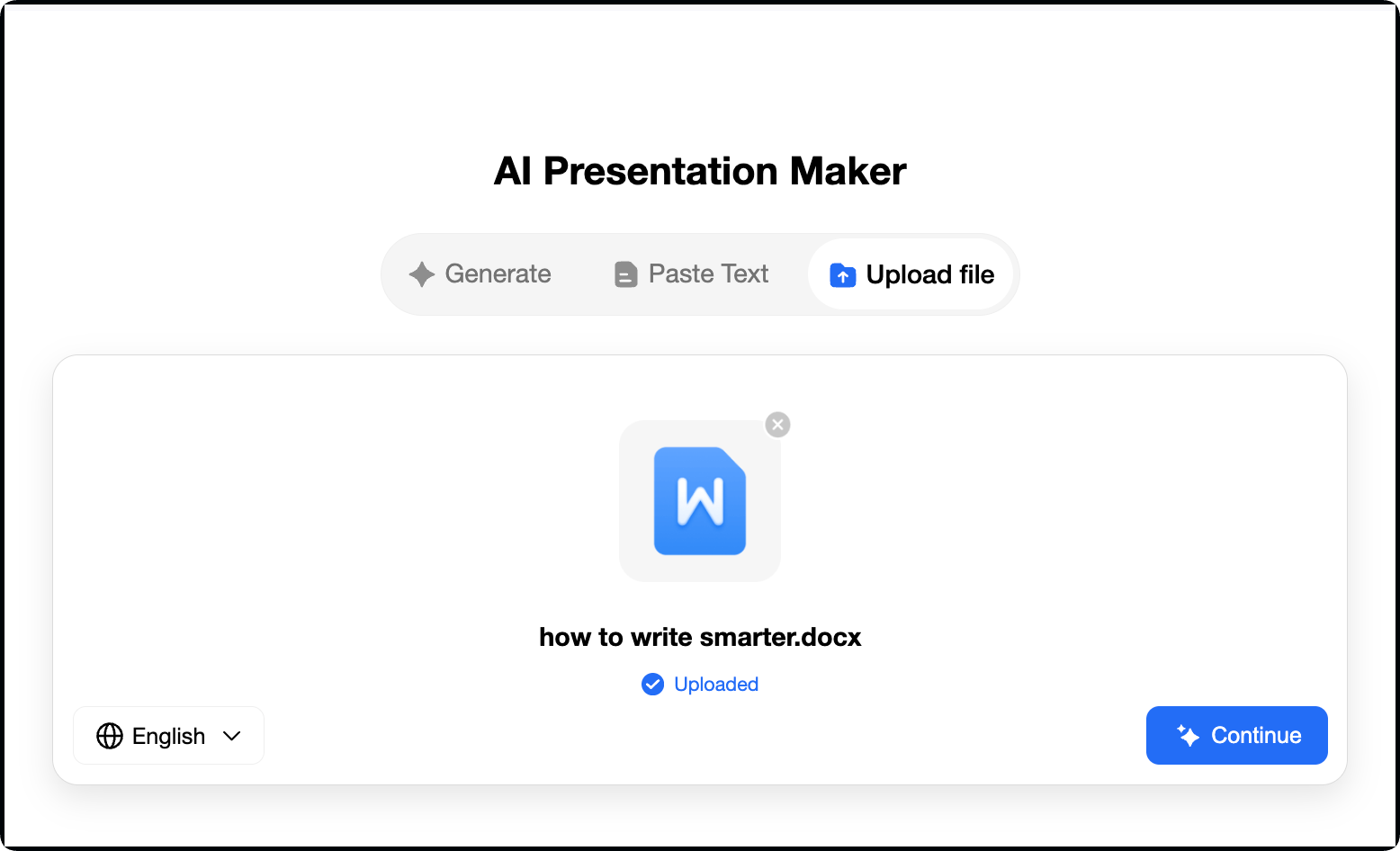
Step 2: Generate and Customize Outline
After uploading your Word document, click the blue arrow icon. This AI-powered tool will help you generate an outline for your slides.
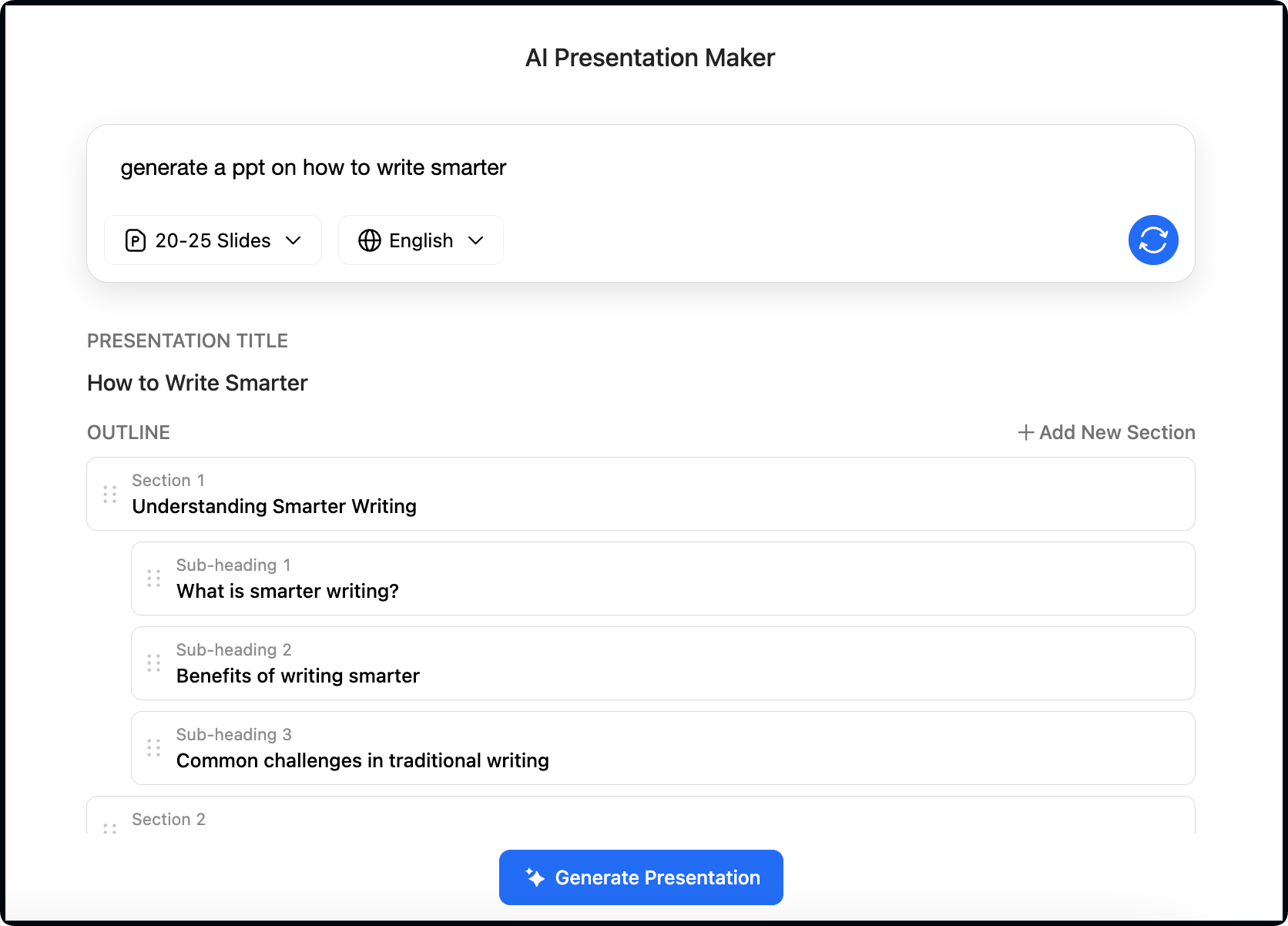
Step 3: Choose a Template Style
After finalizing the outline for your presentation, click the “Generate Presentation” button below and select a template from the variety of professionally designed templates.
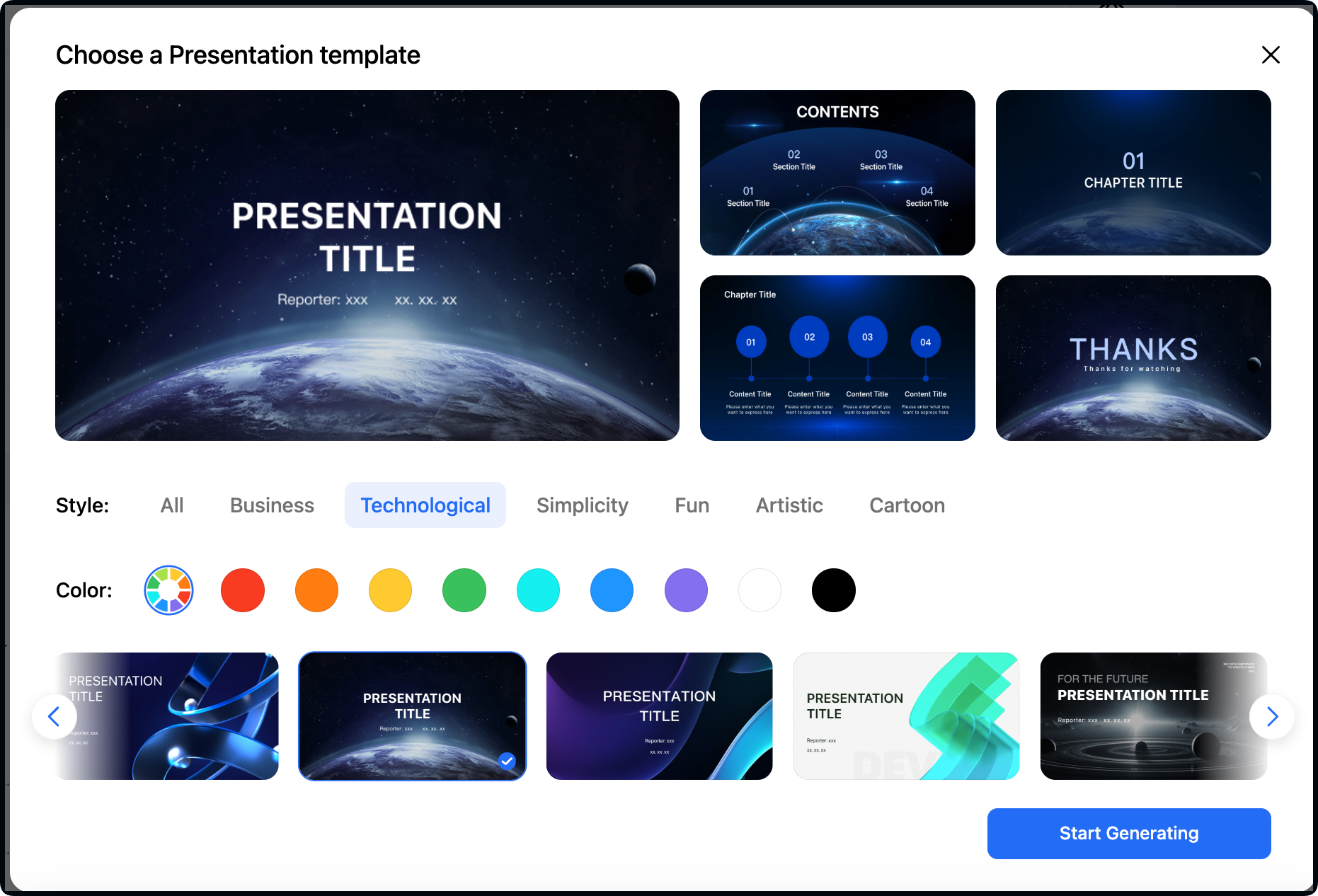
Step 4: Edit and Customize the Slides
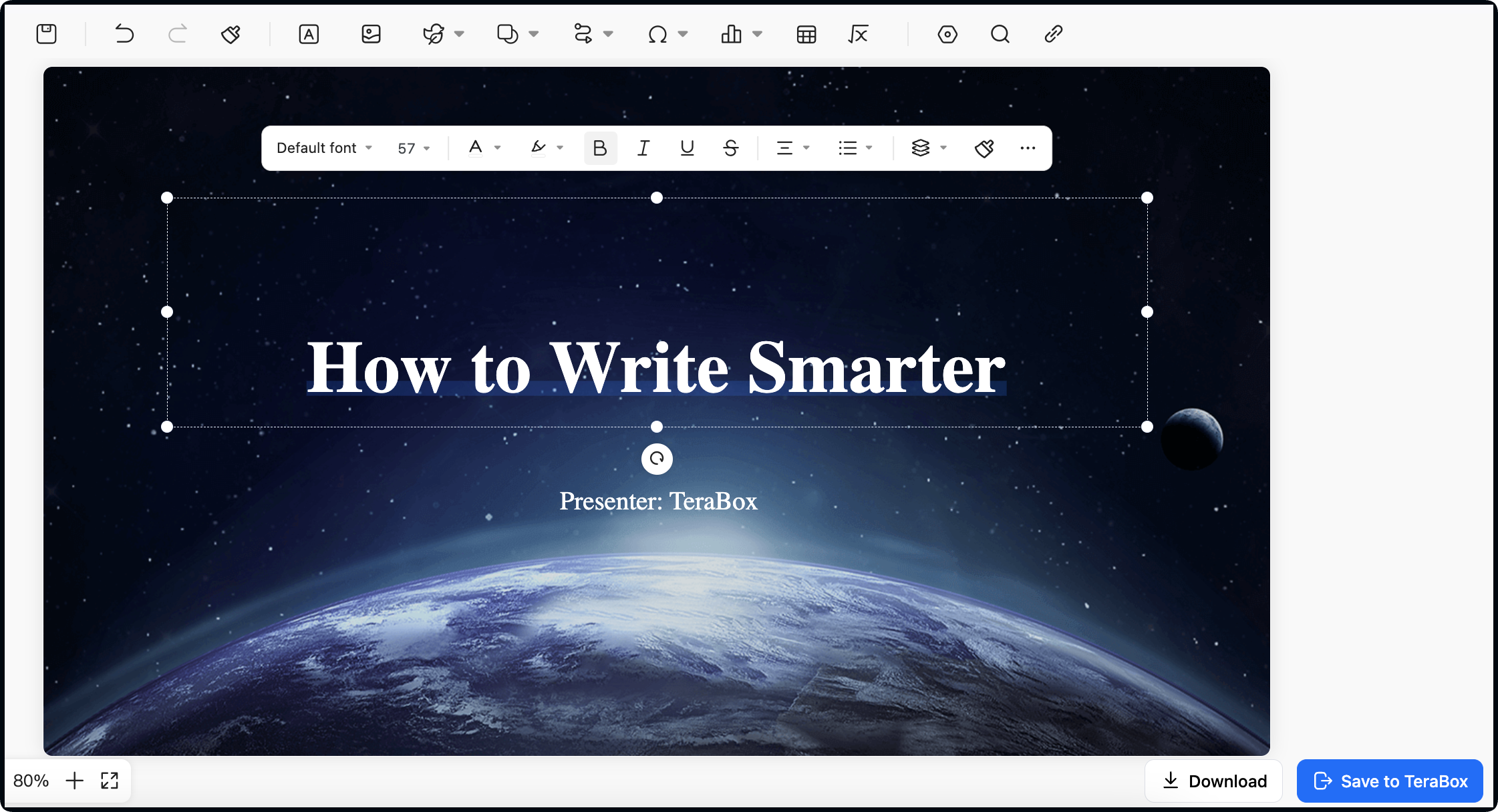
Click the “Start Generating” button in the bottom-right corner and TeraBox AI Presentation Maker will generate your presentation in seconds. Once it is generated, analyze it thoroughly. If any changes are needed, you can edit and customize your presentation to suit your needs.
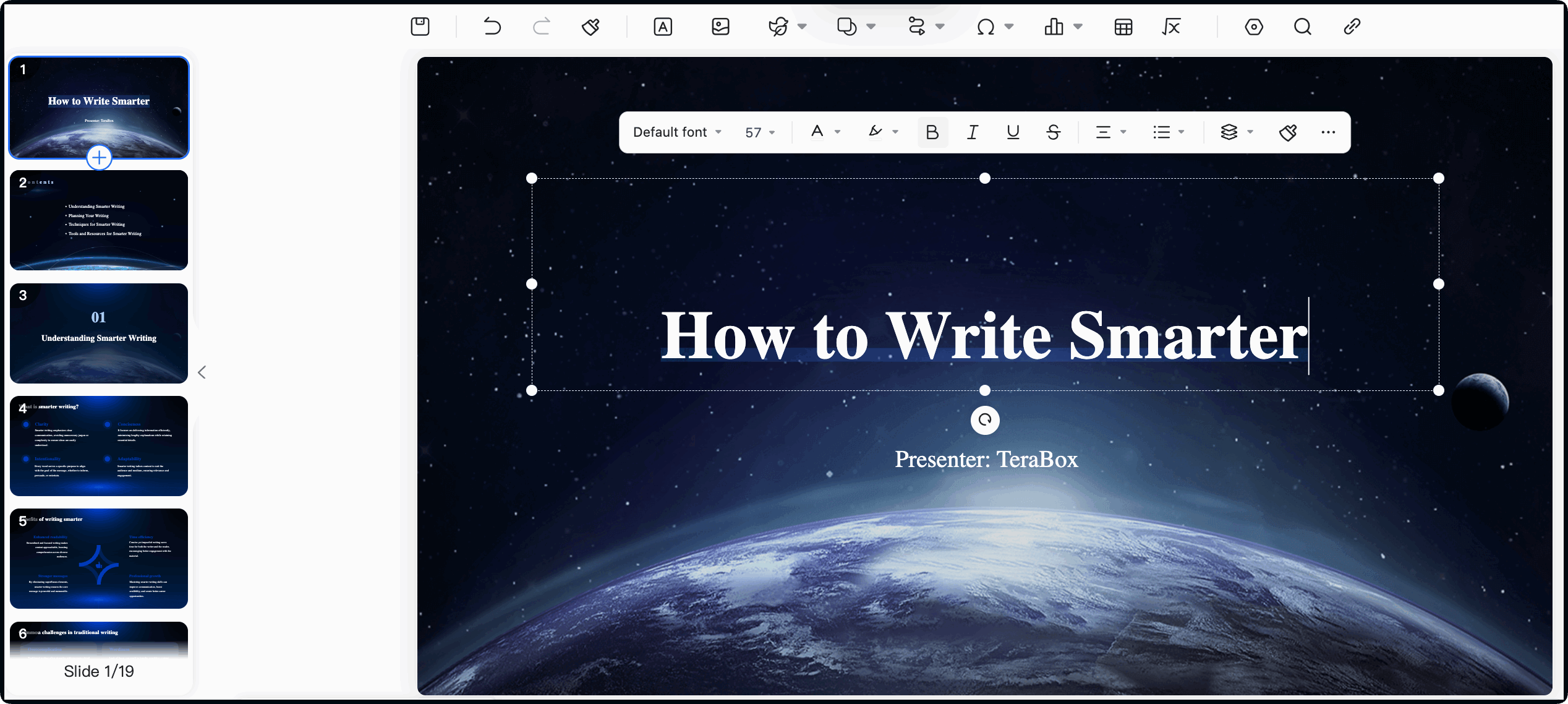
Step 5: Download or Save to TeraBox
Click the “Download” or “Save to TeraBox” options below in the bottom right corner of your screen.
TeraBox: Your One-Stop Solution
In short, TeraBox is an all-in-one solution for all your problems, whether it is converting Word documents or enhancing the design of your presentations. TeraBox has got you covered. TeraBox AI is a collection of reliable AI-powered content generation tools,
Additionally, Tera AI offers other NLP-powered tools, including Tera AI Essay Writer, which helps write a humanized and difficult-to-detect essay, and Tera AI Smart Paraphraser, which improves expression accuracy.
Other Tools You Can Try on Desktop
➔ Zamzar
It offers a straightforward process for converting Word to PowerPoint presentations. It provides both online and offline capabilities.
➔ iLovePDF
iLovePDF is an online platform that gives you a wide range of tools to meet your Word document needs. It is perfect for those seeking a good Word to PPT converter.
➔ Adobe Acrobat Pro
Adobe Acrobat Pro is one of the best tools for working with Word documents available. Even better, you can access the tool online or offline depending on your situation.
Convert Word to PPT on Your Phone (iOS & Android)
Now let’s talk about how to convert Word to PPT in a phone. There are multiple tools you can use to finish the conversion.
These tools are designed to keep the mobile user interface easy, allowing customers to open them on the phone and convert Word to PPT on the phone immediately. Follow these easy steps to take full advantage of your mobile phone:
➔ Step 1: Install an App
Download the app, like TeraBox, from the App Store (for iOS) or Google Play Store (for Android).
➔ Step 2: Sign In or Create an Account
Open the app and log in. If you don’t have an account, you’ll need to create one to access file tools.
➔ Step 3: Upload Your Word File
Tap the upload option and select the Word document you want to convert into PPT from your device storage.
➔ Step 4: Convert the Word File to PPT
Once the document is uploaded, click “Continue” and this will automatically generate a presentation based on the document’s content.
➔ Step 5: Save or Edit the PPT
After conversion, you can download the PPT file or save it to TeraBox. Make edits to any slide if needed.
Other Tools You Can Try for Mobile
➔ OnlyOffice
OnlyOffice Word Converter is also a good Word-to-PPT converter. It is easy to use, and the best part is that it has a user-friendly interface.
➔ Google Slides
Google Slides is another go-to option if you want your presentations to remain dynamic and easy to work on together.
➔ Canva
If you are looking for a tool that ensures the fast and straightforward conversion of a Word document to PowerPoint, then you need Canva.
Tips for Mobile Usability
- Small Screen: Select apps with simple layouts; switch to landscape mode and zoom in to check the slides.
- File Access: Keep files in OneDrive/Google Drive, allow storage access, and use the recent‑files picker.
- Export: Verify the .pptx format, then share via cloud or email, or open it directly in PowerPoint Mobile.
Benefits of Using TeraBox AI Presentation Maker
TeraBox AI Presentation Maker is an exceptional AI tool that can bring your ideas to life.
Yes, you can get your presentation ready in no time. All it needs is a prompt, text, or file, and it will create the presentation from what you offered.
It also makes it easy to convert a Word file into a PowerPoint presentation. It utilizes AI to read your document, extract the main points, and convert them into slides.
You don’t have to design or format anything yourself. Just upload your Word file, and TeraBox will create a clean, ready-to-use presentation. Then, download it with one simple click.
Key Features:
- Generates excellent presentations in a few seconds
- Requires minimal detail to create the presentation
- Offers multiple templates to choose from
- Allows editing after the creation of the presentation
- Supports multiple languages and can change the language with one click
Tips for a Smooth Word to PPT Conversion
1. Use Proper Headings
The first thing you need to focus on is ensuring that your Word document is well-structured. It should contain Heading 1 and Heading 2. In this way, your layout will be organized during the presentation.
2. Keep Formatting Simple
Next, try to make things as simple as possible; avoid using multiple formatting styles, large tables, or embedded media, as this will only make things more complicated.
3. Choose Reliable Tools
Use trusted mobile-friendly tools like TeraBox, Smallpdf, or iLovePDF. These apps are designed to handle file types efficiently.
4. Review the Slides after Conversion
Once you have finished exporting the File, recheck the layout to ensure it meets your requirements. If not, you can still make minor adjustments, such as changing fonts, spacing, or alignment.
5. Save in the Correct Format
For optimal results, ensure that your Word file is saved as .docx and the export is set to .pptx.
FAQs
Q1. What’s the limit on the number of slides on the TeraBox AI presentation maker?
With TeraBox AI Presentation Maker, you can automatically create up to 40 slides. Of course, you can always add more slides as needed.
Q2. How do I convert a Word document to a PowerPoint presentation?
Go to TeraBox official website and upload a Word document, and the platform will automatically transform your file into a presentation in seconds. Just give it a try.
Q3. Why can’t I convert Word to PowerPoint?
1) Disabled Options: Verify that the ‘Export to PowerPoint’ feature is not turned off in Word settings or through group policy settings.
2) Document Format: Some document formats may not be compatible with exporting to PowerPoint. Ensure that you are using compatible formats.
Q4. Will my slides look professional after the conversion?
Our AI organizes your content clearly, and our PowerPoint templates ensure your PPT has a sleek, professional look.
Q5. How Quickly Can I Convert Word to PowerPoint?
With TeraBox, you can convert Word to PPT in under 3 minutes. Upload, customize, and download—it’s that fast!
Conclusion
Utilizing AI in presentation creation is the future. It’s a time-saver and assists people in creating a presentation according to their specific criteria.
TeraBox AI presentation maker is an excellent tool with advanced features. It makes presentations in seconds and allows you to add details and edit everything.
It’s perfect for students, educators, professionals, and almost everyone who needs a presentation.
Sign up for Tera AI for free and explore its incredible features and capabilities. Hopefully, now you know how to convert Word to PPT.