Cross-platform layout shifts are a constant headache for anyone sharing financial reports, project timelines, or client quotes between Mac and Windows. What looks perfectly aligned on your machine can easily turn into an unreadable mess on a colleague’s screen simply because the two operating systems process spreadsheet layouts differently.
Converting XLSX file to PDF helps preserve a more stable layout across devices. TeraBox offers a browser-based tool to create a shareable PDF on both Mac and Windows, without requiring you to rely on specific spreadsheet software or install desktop apps.
Why Excel Spreadsheets Break Between Mac and Windows?
An XLSX file contains dynamic raw data that desktop Excel recalculates every time it opens. Because macOS and Windows handle screen rendering, default fonts, and page boundaries differently, the exact same file often displays with noticeable errors across platforms.
The primary causes for these layout shifts include:
- Font Substitution: Standard Windows fonts like Calibri or Aptos aren’t always native to macOS. When a Mac substitutes missing fonts with local alternatives, text widths shift, causing numbers or text to spill out of cells.
- Display and Scale Differences: Windows and Mac handle screen resolution and scaling differently, often resulting in misaligned grid lines, stretched borders, or drifting chart legends.
- Default Page Sizes and Margins: Regional and system defaults (such as US Letter vs. A4) vary. A minor mismatch in margin calculation easily pushes the last column of your main table onto an awkward second page.
- Printer Driver Dependencies: Desktop Excel relies on local printer drivers to determine page breaks. Opening the file on a system with a different printer setup recalculates boundaries, frequently splitting rows in half.
- Version Inconsistencies: Excel for Mac and Excel for Windows do not share identical rendering engines. Advanced conditional formatting, custom shapes, or specialized charts frequently break when passed between different app versions.
How to Convert XLSX to PDF for Seamless Cross-Platform Sharing?
I specifically chose a complex, multi-tab business workbook combining high-density financial data, multi-series trend charts, wide regional sales tables, and project pipelines. Testing with a data-heavy file gives a clear, realistic picture of how the pdf converter handles page breaks, multi-sheet rendering, and chart alignment.
Here is the step-by-step TeraBox conversion process:
Step 1: Access the Converter and Upload Your Spreadsheet
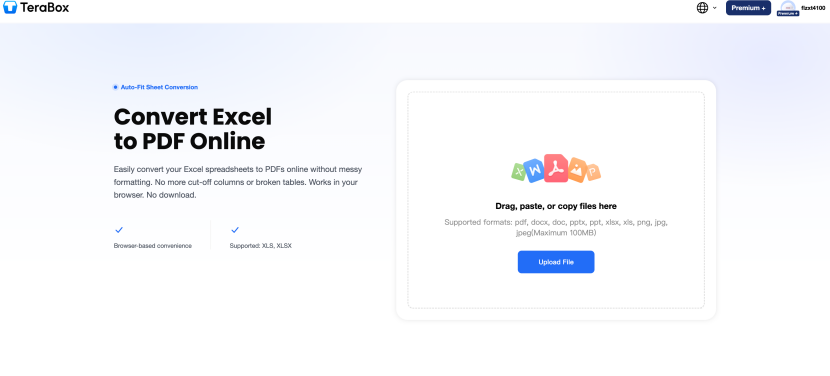
Navigate to the TeraBox Excel to PDF converter in any modern browser on Mac or Windows. The interface accepts both standard .xlsx files and older .xls formats (along with other common office files like DOCX or PPTX up to 100MB).
Drag and drop your spreadsheet into the upload box, or click Upload File to select it from your local storage.
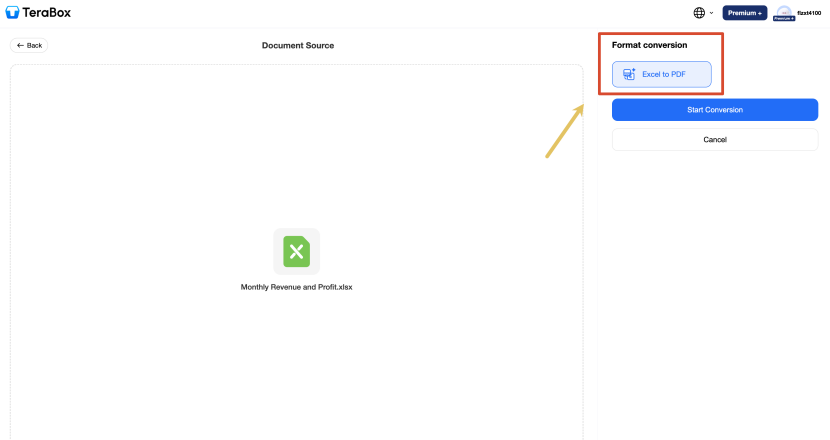
Step 2: Confirm the File and Start Conversion
Once uploaded, the screen displays your file name. On the right-side control panel, verify that the target action is set to Excel to PDF, then click the blue Start Conversion button. The browser will process the rendering directly online.
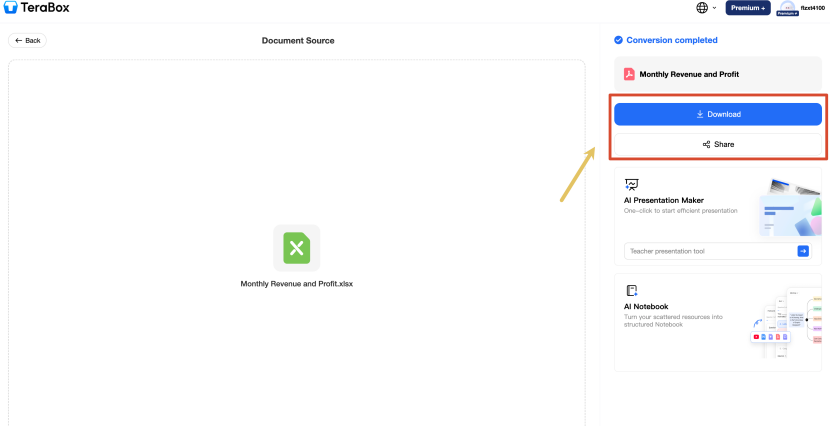
Step 3: Download or Share the PDF
The entire conversion for our multi-tab workbook took just about 15 seconds. The exported PDF retained the original file name automatically. You can choose to download the PDF locally for a quick visual review or use the direct share option once you confirm the layout is intact.
Further reading: Online PDF to Excel with OCR: Extract Data from Scanned PDFs
Why TeraBox XLSX to PDF Converter Is a Better Choice for Mac and Windows Users?
After downloading the output file, I opened it on both macOS and Windows to compare it against the source Excel document.
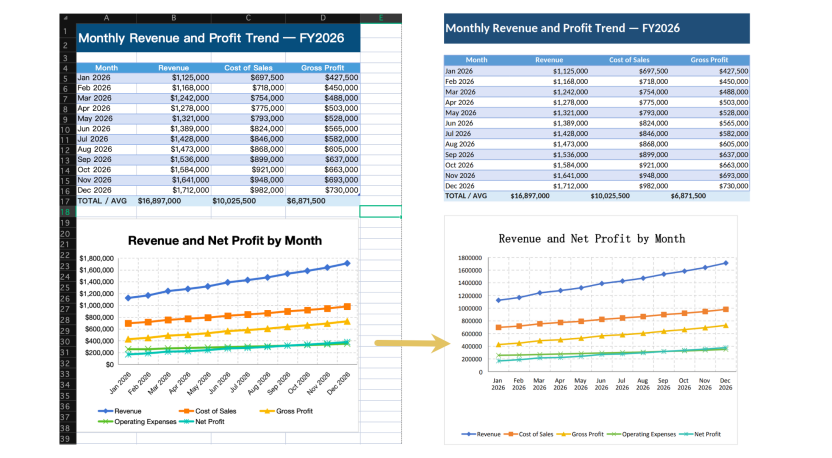
The generated PDF locked all cell formatting, shading, and currency values ($1,125,000) into exact coordinates, keeping table grids and the accompanying line chart perfectly aligned. Axis labels, trend lines, and legends rendered cleanly without text overlaps. Crucially, all five worksheet tabs (Executive Summary, Regional Sales, Monthly Trends, Report Notes, and Project Pipeline) were consolidated into a single continuous PDF, with wide multi-column layouts automatically fitted to standard page boundaries without dropped columns or cut-off data.
Beyond the accurate rendering, a few practical details in the workflow made the process smooth during testing:
Full Support for Both XLS and XLSX Files with a Web-based Tool
I didn’t have to worry about whether the file was an older .xls or a newer .xlsx, nor did I need to check if my Mac had the exact same fonts as a Windows machine. The browser handles the whole process on the cloud, so you don’t even need desktop Excel open on your computer.
Generous 100MB File Size Limit
A common annoyance with many quick online converters is hitting a restrictive file size wall or being forced to sign up for a medium-sized file. During our test, TeraBox Excel to PDF converter tool easily accommodated our multi-tab workbook with its support for files up to 100MB, all without dragging out the processing time.
Clean, watermark-free output
For business documents like client quotes or internal financial summaries, having an arbitrary web service stamp its logo on your document is an immediate dealbreaker. The exported PDF came out completely clean, ready to be attached straight to an email or uploaded to a shared team folder.
FAQs
How accurate is the Excel-to-PDF conversion?
For this process, TeraBox preserved the workbook’s table borders, cell shading, currency formatting, and chart elements without noticeable misalignment.
Will wide tables and multiple worksheets be included?
The five worksheets in our test were combined into one PDF in their original order. Wide tables were scaled to fit the page without obvious missing columns, although very large sheets should still be checked for small text or awkward page breaks.
How long does it take to convert an Excel file to PDF?
For standard business files, processing usually takes just a few seconds. Even for our data-heavy test workbook containing five worksheet tabs, complex formatting, and embedded charts, the cloud conversion finished in about 15 seconds.
What is the maximum Excel file size I can upload?
TeraBox supports XLS and XLSX files up to 100MB. This should cover most everyday spreadsheets, including multi-sheet financial reports, project trackers, and sales workbooks.
Is it safe to upload business spreadsheets to TeraBox?
TeraBox states that uploaded business reports and personal data are protected from the time they are uploaded until the PDF is ready. For highly confidential files, it is still sensible to follow your company’s data-handling policy before using any online converter.
Can I turn Excel into PDF on a mobile phone?
Yes. Open the TeraBox converter in a mobile browser such as Safari or Chrome, upload the spreadsheet, and start the conversion. The browser-based workflow means you do not need the desktop version of Excel, although reviewing a wide PDF is usually easier on a larger screen.
Conclusion
Sharing spreadsheets between Mac and Windows can lead to unexpected formatting issues. Converting your finalized workbook to a static PDF can help reduce these cross-platform compatibility problems. A quick visual check before sending helps ensure that your recipient sees the document as intended, regardless of their operating system.
For seamless cross-platform sharing, you can use the TeraBox online converter to turn your XLSX file into a clean, ready-to-share PDF.