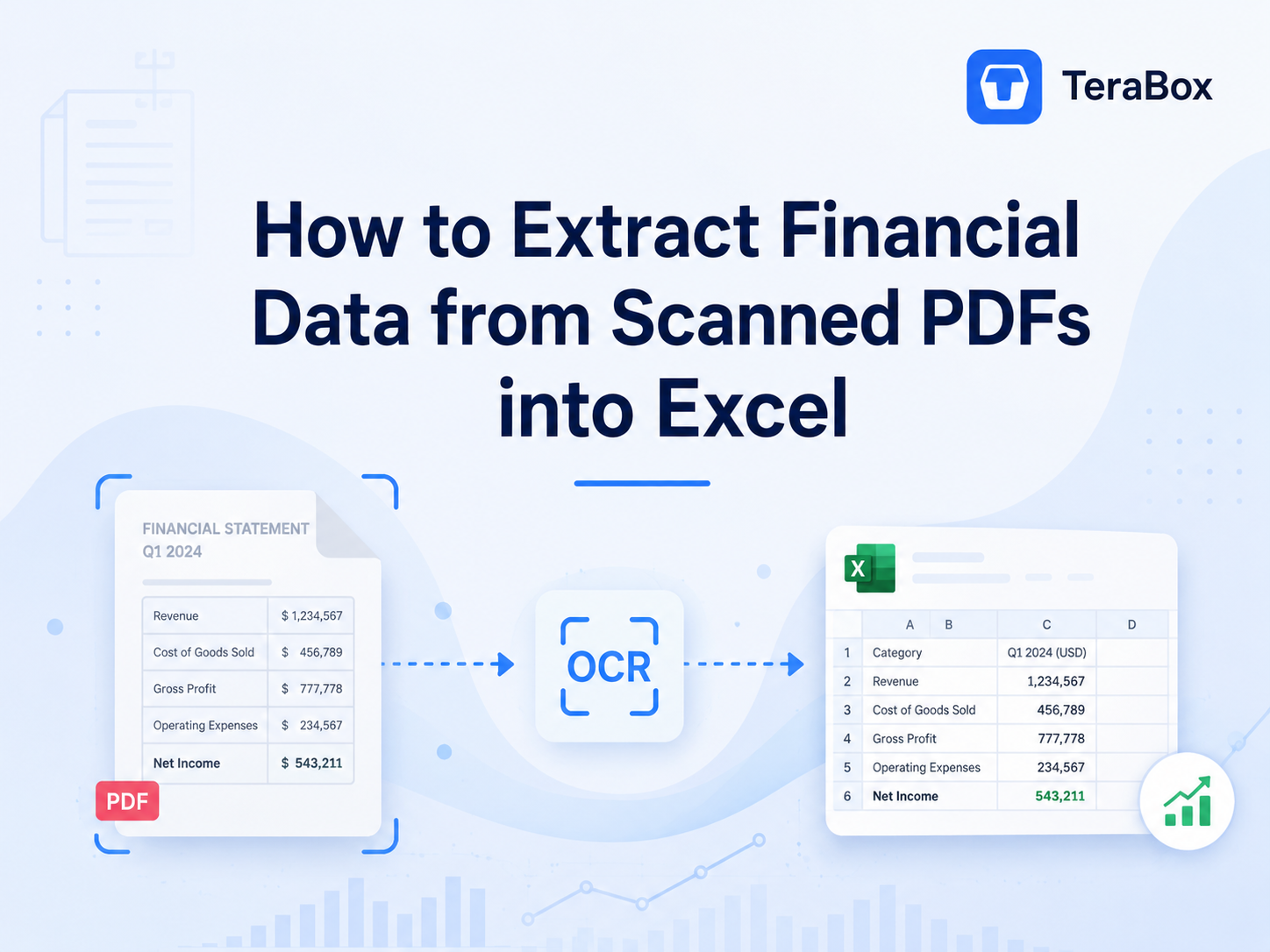
A stack of scanned invoices or bank statements might look fine on your screen, but the second you need to calculate totals, sort dates, or build a report, they turn into a manual typing bottleneck. Entering the data row by row takes time and makes it easy to miss a decimal point, place a value in the wrong column, or overlook a negative amount.
That’s where a tool of online PDF-to-Excel with OCR comes in. It recognizes text and table structures in scanned financial PDFs, then rebuilds the extracted data in an editable Excel spreadsheet for review.
This guide outlines a repeatable, end-to-end workflow—from prepping your source documents to converting them with TeraBox’s PDF to Excel tool and auditing the final spreadsheet for common errors.
What Is OCR and Why Do Financial Tasks Need It?
Optical Character Recognition (OCR) turns text and numbers in scanned images into machine-readable data. Unlike digital PDFs, a scanned PDF is stored as an image, meaning values like $1,450.50 cannot be searched, copied, or calculated in Excel.
For financial records, OCR alone is not enough. It must work alongside table recognition to identify rows, columns, decimal points, currency symbols, and negative values. Together, they map dates, descriptions, taxes, and totals into separate Excel cells, turning static scans into structured data ready for analysis.
Pre-Conversion Preparation
Spending a minute to clean up your source PDF before converting will save you from tedious data cleanup in Excel later. Here is a quick pre-conversion checklist:
Ensure scan clarity and resolution: Aim for a clean scan at 300 DPI. Dark or blurry pages, such as faint thermal store receipts, often lead to misidentified digits—turning a 3 into an 8 or dropping a decimal point entirely.
Fix page orientation and verify page order: Rotate all pages right side up, as OCR engines read left to right. Confirm that multi-page reports are ordered sequentially so your tables flow logically without breaking chronological order.
Check for cropped table borders: Make sure no table edges, column headers, or totals are cut off at the boundaries. Missing grid lines make it significantly harder for the tool to map cells into the correct columns.
Clean up unnecessary content and protect sensitive data: Delete redundant blank pages upfront so they do not clutter your converted file. If you are processing external vendor records, black out confidential information like private account numbers before uploading.
How to Convert a Scanned PDF to Excel Using TeraBox?
To see how the TeraBox PDF to Excel Converter performs on a real-world OCR task, we tested it with a 3-page scanned Accounts Payable register containing 8 structured data columns, decimal figures, negative amounts in parentheses, and page totals.
Here is the exact step-by-step process for extracting financial data from a PDF to Excel with OCR:
Step 1: Upload the Scanned Financial PDF
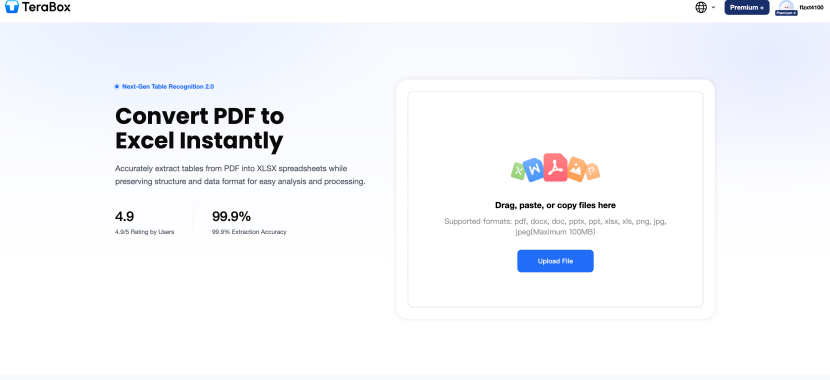
Open the PDF to Excel Converting tool interface and add your document using the Upload File button, or simply drag and drop the file directly into the browser window.
The tool accepts common formats including PDF, PNG, JPG, and JPEG with a size limit of up to 100 MB. For our test, we uploaded the document, loading the entire report in one go without needing to split individual pages.
Step 2: Choose PDF to Excel and Start the Conversion
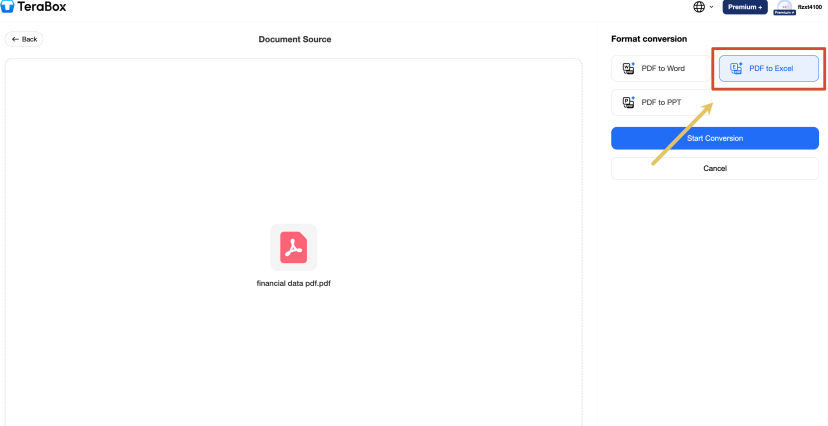
Once loaded, select PDF to Excel from the format conversion panel on the right (make sure to switch away from the default PDF to Word option).
Click Start Conversion. The tool automatically identifies table boundaries and multi-page table extensions across page breaks without requiring manual box-drawing or zone selection.
Step 3: Download and Open the Excel File
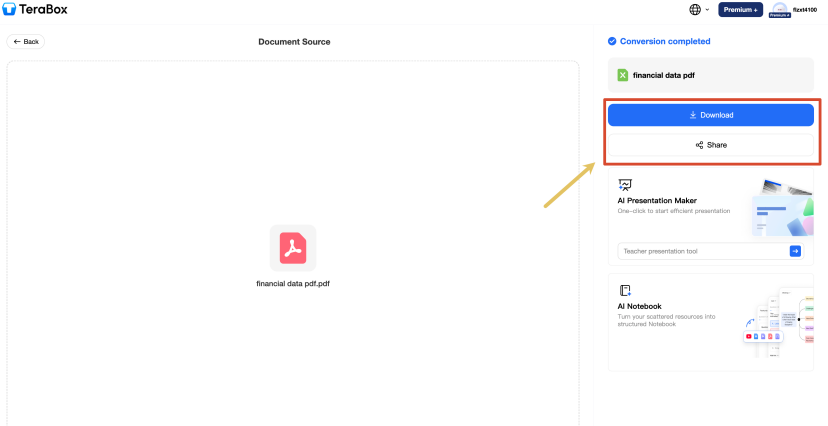
After the conversion is complete in about 20 seconds, TeraBox provides two options: Download and Share. Select Download to save the spreadsheet locally, then open it in Microsoft Excel or another program that supports XLSX files.
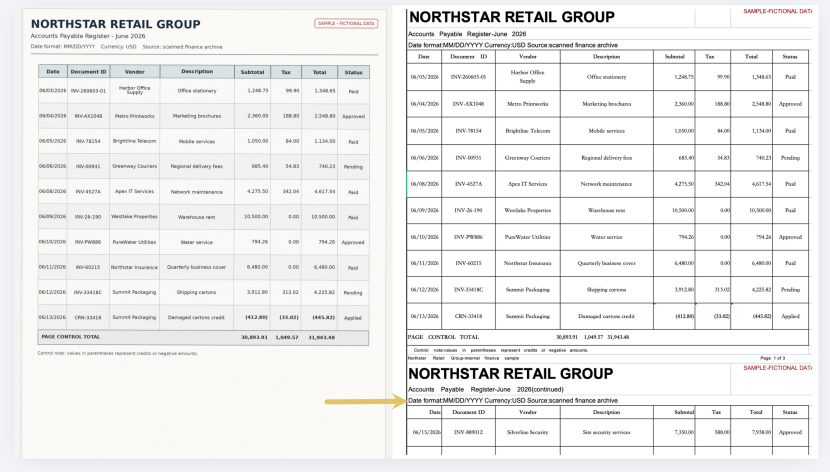
From an extraction standpoint, the spreadsheet retained a clean and usable structure. Key details included line items, decimal values such as 1,248.75, the credit amount shown in parentheses as (412.80), and the control total of 31,943.48. Each value was placed in a separate editable cell, and no obvious column merging appeared in the tested file.
A few longer vendor names wrapped onto two lines, but the table remained easy to follow and ready for a final accuracy check against the source PDF.
Common OCR Problems to Check and Fix After Conversion
Even with high conversion accuracy, complex financial layouts can occasionally trigger minor extraction glitches. Performing a quick audit in Excel before using the numbers in formulas will save you from balance errors later.
Use this checklist to spot and clean up common conversion errors:
| OCR Error | Example / Visual Sign | How to Fix It |
| Misplaced Rows & Columns | Vendor name and Document ID squeezed into a single cell, or dates shifted sideways. | Select affected cells and use Data > Text to Columns, or manually drag cells back into alignment. |
| Missing Decimals | Subtotal shows $124875 instead of $1,248.75, artificially inflating your figures. | Apply Conditional Formatting to highlight unusually high numbers, then manually insert missing decimals. |
| Lost Negatives & Parentheses | A credit line of (412.80) converts as a positive balance of 412.80. | Filter by keywords (such as Credit or Adjustment) to ensure corresponding values retain negative signs. |
| Character Misreads | INV-2606O3 (with an O) or $1,O50.00, causing Excel =SUM() formulas to ignore the cell as text. | Press CTRL + H (Find and Replace) across numerical columns to replace recurring letters with digits. |
| Inconsistent Date Formats | 06/03/2026 mixed with 2026.06.04 or stored as un-sortable text strings. | Select the column, go to Format Cells > Date, and re-apply a uniform date structure. |
| Repeated Page Headers | Secondary page titles like Accounts Payable Register (continued) breaking up your table rows. | Apply a Filter on the main column, uncheck legitimate entries, select all header rows, and delete them at once. |
| Mismatched Totals | The converted total text reads 31,943.48, but highlighting the cells above sums to a different total. | Add an Excel =SUM() formula next to the converted total cell to verify that all figures add up correctly. |
Pro Tip: If you spot widespread errors across most rows, don’t waste time manually editing every cell. It usually means the original scan quality was too low, and running the file through a quick contrast or clarity adjustment upfront will yield a far cleaner spreadsheet.
Further reading: TeraBox June 2026 Product Updates
FAQs
How accurate is OCR when converting financial PDFs to XLSX?
Accuracy depends on the scan quality and table complexity. In our test, the online converter retained the main column structure, transaction IDs, decimal values, credit amounts, and page totals.
How long does PDF-to-Excel conversion take?
Conversion time varies with the number of pages, file size, scan resolution, and table complexity. Our three-page scanned financial document completed took about 20s to convert. Larger reports or image-heavy scans may take longer, so avoid stating a fixed conversion time unless it has been recorded during the test.
What is the maximum file size supported?
The upload interface accepts files up to 100 MB. This is large enough for many multi-page invoices, bank statements, and financial reports without splitting them into smaller files first.
What file formats can I upload?
The upload panel accepts PDF, DOCX, DOC, PPTX, PPT, XLSX, XLS, PNG, JPG, and JPEG files. This guide specifically tested an image-based PDF converted to XLSX.
Is my financial data safe during conversion?
TeraBox states that PDF-to-XLSX conversions use end-to-end encryption and that uploaded information is not viewed, saved, or shared with others. Even so, it is good practice to anonymize highly sensitive financial records where possible and avoid exposing account numbers or customer information in screenshots.
Can I edit the Excel file after conversion?
Yes. The downloaded XLSX file can be opened and edited in Microsoft Excel or another compatible spreadsheet application. You can correct values, change number formats, remove repeated headers, sort or filter records, and add formulas for calculations and reconciliation.
Conclusion
Converting scanned financial PDFs into Excel does not have to involve hours of manual data entry. With a clear source scan and the right OCR PDF to Excel tool, you can extract tables from PDF files and place the data into editable spreadsheet cells.
If you have a stack of scanned receipts, bank statements, or invoices waiting on your desktop, try running them through the TeraBox PDF Converter to streamline your monthly reporting workflow.